# Use the Python SDK > Learn how to install and use the Python SDK to develop apps {/* vale Payabli.We = NO */} {/* First person rule off for Quickstart */} Payabli offers a Software Development Kit (SDK) for the Python programming language. The Python SDK can be installed in your projects to support app development and provide type safety when calling Payabli's APIs. Most development environments can use the SDK to generate code suggestions and inline documentation. See the [`payabli-sdk-python`](https://pypi.org/project/payabli/) package for more information. ## Dependencies Before you begin, make sure you have the following installed on your machine: * [Python](https://www.python.org/downloads/) 3.8+ * [pip](https://pip.pypa.io/en/stable/installation/) * [git](https://git-scm.com/book/en/v2/Getting-Started-Installing-Git) ## Use the SDK This section shows you how to install and use the Payabli SDK in a new Python project. The example code shows how to use the SDK to make a transaction with the `money_in.getpaid` method. The `money_in.getpaid` method calls the [MoneyIn/getpaid](/developers/api-reference/moneyin/make-a-transaction) endpoint. See the [SDK reference](https://github.com/payabli/sdk-python/blob/main/reference.md) for a full list of methods. Method names in the SDK correspond to endpoint names in the API reference. For example: the `notification.add_notification` method calls the [POST Notification](/developers/api-reference/notification/add-notification) endpoint. Open your terminal and run the following commands to create a new Python project: ```bash mkdir my-payabli-app cd my-payabli-app ``` Create and activate a virtual environment: ```bash MacOS/Linux python -m venv venv source venv/bin/activate ``` ```bash Windows python -m venv venv venv\Scripts\activate ``` Run the following command to install the Payabli SDK: ```bash pip install payabli ``` Create a new file called `main.py` in the root of your `my-payabli-app` directory: ```bash touch main.py ``` Open the `main.py` file in your code editor. The interactive walkthrough displays code examples alongside step-by-step explanations. Follow the walkthrough to use the SDK in your Python code. {/* Hidden markdown content for server rendering and AI ingestion */}
/// Import the client and types Import the Payabli SDK to make it available in your code. ```python # main.py from payabli import payabli, PaymentDetail, PayMethodCredit, PayorDataRequest ``` /// Initialize the client Create an authenticated client instance with your API key. This client has methods that call Payabli's API endpoints. ```python focus=4 # main.py from payabli import payabli, PaymentDetail, PayMethodCredit, PayorDataRequest client = payabli(api_key="REPLACE_WITH_YOUR_API_KEY") ``` /// Define the entrypoint Define your entrypoint. Get this value from your Payabli account. ```python focus=6 # main.py from payabli import payabli, PaymentDetail, PayMethodCredit, PayorDataRequest client = payabli(api_key="REPLACE_WITH_YOUR_API_KEY") entry_point = "REPLACE_WITH_YOUR_ENTRYPOINT" ``` /// Build the payment request Construct a request object that contains all the necessary fields to process a transaction. Include payment details, a payment method, and customer data. ```python focus=8-27 # main.py from payabli import payabli, PaymentDetail, PayMethodCredit, PayorDataRequest client = payabli(api_key="REPLACE_WITH_YOUR_API_KEY") entry_point = "REPLACE_WITH_YOUR_ENTRYPOINT" request_kwargs = dict( customer_data=PayorDataRequest( customer_id=4440, ), entry_point=entry_point, ipaddress="255.255.255.255", payment_details=PaymentDetail( service_fee=0.0, total_amount=100.0, ), payment_method=PayMethodCredit( cardcvv="999", cardexp="02/27", card_holder="Kassiane Cassian", cardnumber="4111111111111111", cardzip="12345", initiator="payor", method="card", ), ) ``` /// Execute the transaction Call `money_in.getpaid()` to process the transaction. The client calls Payabli's `POST /MoneyIn/getpaid` endpoint. ```python focus=29 # main.py from payabli import payabli, PaymentDetail, PayMethodCredit, PayorDataRequest client = payabli(api_key="REPLACE_WITH_YOUR_API_KEY") entry_point = "REPLACE_WITH_YOUR_ENTRYPOINT" request_kwargs = dict( customer_data=PayorDataRequest( customer_id=4440, ), entry_point=entry_point, ipaddress="255.255.255.255", payment_details=PaymentDetail( service_fee=0.0, total_amount=100.0, ), payment_method=PayMethodCredit( cardcvv="999", cardexp="02/27", card_holder="Kassiane Cassian", cardnumber="4111111111111111", cardzip="12345", initiator="payor", method="card", ), ) result = client.money_in.getpaid(**request_kwargs) ``` /// Show the result Log the transaction response. Check the output to see if the transaction was successful. ```python focus=31 # main.py from payabli import payabli, PaymentDetail, PayMethodCredit, PayorDataRequest client = payabli(api_key="REPLACE_WITH_YOUR_API_KEY") entry_point = "REPLACE_WITH_YOUR_ENTRYPOINT" request_kwargs = dict( customer_data=PayorDataRequest( customer_id=4440, ), entry_point=entry_point, ipaddress="255.255.255.255", payment_details=PaymentDetail( service_fee=0.0, total_amount=100.0, ), payment_method=PayMethodCredit( cardcvv="999", cardexp="02/27", card_holder="Kassiane Cassian", cardnumber="4111111111111111", cardzip="12345", initiator="payor", method="card", ), ) result = client.money_in.getpaid(**request_kwargs) print(result) ```
Run the app with the following command: ```bash python main.py ``` Check the console output for the result of the transaction. A successful transaction returns output like this: ```txt { 'response_text': 'Success', 'is_success': True, 'page_identifier': None, 'response_data': { 'auth_code': 'TAS003', 'reference_id': '255-67bc92c141e24f474f60c1968fcba0cd', 'result_code': 1, 'result_text': 'Approved', 'avs_response_text': 'No Match, No address or ZIP match', 'cvv_response_text': 'CVV2/CVC2 match', 'customer_id': 4440, 'method_reference_id': None } } ```
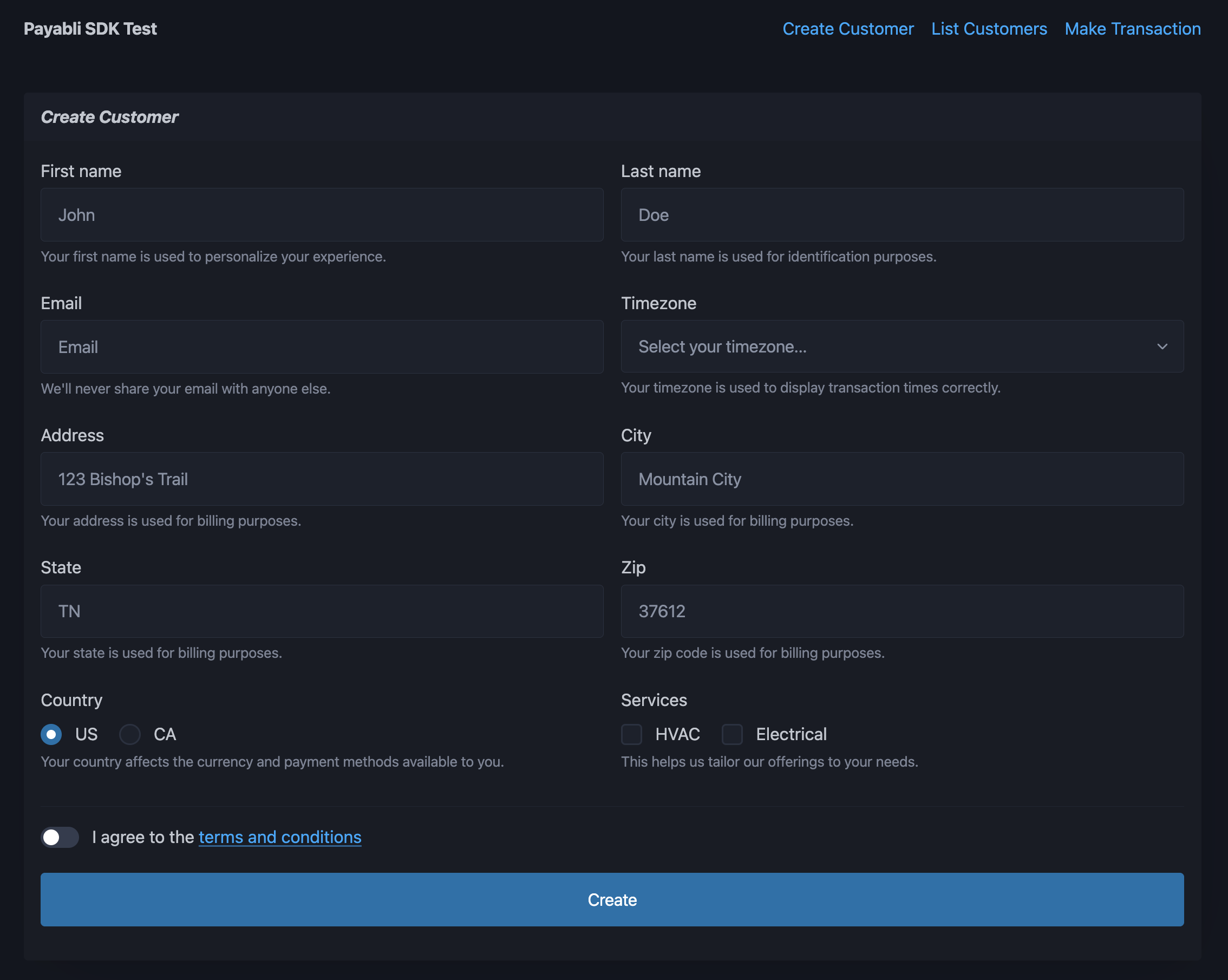
In production, we recommend that you pass a stored method ID to the `payment_method` object instead of card details. See more information in [Tokenization Overview](/guides/platform-tokenization-overview). ## SDK example app The SDK example app is a basic web app built with the Payabli Python SDK. It demonstrates how to manage customers and use the temporary token flow with the SDK. The code is publicly available in the [example repository](https://github.com/payabli/examples/tree/main/sdk/py-sdk). customer creation page of SDK example app ### Set up the app Follow these steps to set up the SDK example app on your local machine: Open your terminal and run the following command to clone the SDK example app repository: ```bash git clone https://github.com/payabli/examples ``` In your terminal, navigate to the directory containing the SDK example app: ```bash cd examples/sdk/py-sdk ``` Create and activate a virtual environment: ```bash python -m venv venv source venv/bin/activate # On Windows: venv\Scripts\activate ``` Install the dependencies with the following command: ```bash pip install -r requirements.txt ``` Copy the`.env.template` file to a new file called `.env`: ```bash cp .env.template .env ``` Open the `.env` file in your code editor. Set `PAYABLI_KEY` to a private API token, `PAYABLI_ENTRY` to your Payabli entrypoint, and `PAYABLI_PUBLIC_TOKEN` to a public API token: ```bash # your Payabli Private API token PAYABLI_KEY="o.Oim...Mekgjw=" # your Payabli entrypoint PAYABLI_ENTRY="41xxxxxa7e" # your Payabli Public API token PAYABLI_PUBLIC_TOKEN="o.Oim...Mekgjw=" ``` Run this command to start the development server, and open the app in your browser: ```bash uvicorn main:app --reload ``` ### Use the app The SDK example app has three pages: 1. **Create Customer** - Create a new customer in the Payabli entrypoint. 2. **List Customers** - View a list of all customers in the Payabli entrypoint. 3. **Make Transaction** - Make a transaction using the temporary token flow. #### Create customer The **Create Customer** page has a form that allows you to create a new customer. Fill in the form with the customer's information and click the "Create" button. If the customer is created successfully, a green success message appears below the button. #### List customers The **List Customers** page has a table of all customers in the entrypoint. You can view the customer's information, including their name, email address, and ZIP Code. Click the "X" button on the right side of a customer's row to delete the customer. If the customer is deleted successfully, the row is removed from the table. #### Make transaction The **Make Transaction** page contains an EmbeddedMethod UI component using the temporary token flow. Fill in the form with payment information and click the "Process" button when the payment information is valid. The app performs these steps: 1. The embedded component saves the payment method as a temporary token and sends it to the server. 2. The server converts the temporary token to a permanent token with the **POST TokenStorage/add** endpoint. 3. The server uses the permanent token to make a transaction with the **POST MoneyIn/getpaid** endpoint. If everything is successful, a green success message appears below the embedded component. See [Extend embedded components with the temporary token flow](/guides/platform-developer-tokenization-temp-flow) for more information.