# ExpressCheckout UI
> Learn how to use the ExpressCheckout UI component on your site or in your app to securely accept digital wallet payments
The ExpressCheckout component lets you embed an express checkout for digital wallets inside your website or application. This component provides seamless integration with Apple Pay and Google Pay.
## Usage
This component lets you add a robust low-code way to accept payments from digital wallets to your pages or apps with automatic device compatibility detection.
Follow the configuration walkthrough to set it up in your project.
See [Library URLs](/guides/pay-in-components-overview#library-urls) for important information about embedded components library URLs.
### Configuration walkthrough
The interactive walkthrough displays code examples alongside step-by-step explanations.
{/* Hidden markdown content for AI absorption and server rendering */}
/// Include the Payabli Script
First, add the Payabli embedded component script to your HTML.
Make sure to include the `data-test` attribute for testing in the sandbox environment.
Including `` in the `` element prevents problems with special characters such as ‘á’ or ‘ñ’.
```html
Payabli Integration
```
/// Create the Container
Add a container element where the embedded component renders. The configuration references this element by its `id` attribute.
This `
` element serves as the mounting point where the embedded component renders.
```html focus=8-9
Payabli Integration
Express Checkout
```
/// Configure the Component
Create the configuration object that defines how your embedded component behaves. This configuration includes authentication tokens, payment method settings, and callback functions.
The `rootContainer` property connects the component to your HTML element by matching the `id` attribute value. The `token` value must be a **public API token**.
See the [Configuration Reference](#configuration-reference) for more information.
```html focus=12-52
Payabli Integration
Express Checkout
```
/// Add Callback Functions
Implement success, error, ready, and cancel callback functions to handle component responses and form validation states.
These callback functions execute after the user interacts with the digital wallet buttons and the component receives a response from Payabli's API.
```html focus=63-105
Payabli Integration
Express Checkout
```
/// Initialize the Component
The final step creates a working express checkout that can process transactions with digital wallets.
```html focus=112-113
Payabli Integration
Express Checkout
Pay securely with your digital wallet:
```
### Configuration reference
These are the configuration parameters available for the ExpressCheckout component.
This value determines the type of embedded component to render.\
Accepted values are: `methodEmbedded`, `methodLightbox`, `vterminal`, or `expressCheckout`.\
For the ExpressCheckout UI, this value is `expressCheckout`.
See the [Embedded Components Overview](/guides/pay-in-components-overview) for more information on other component types.
Container ID used for the component.
When `true`, transactionDetails object is returned in the response. See a full example of the `transactionDetails` object in the [Transaction integration guide](/guides/pay-in-developer-transactions-create#includedetailstrue-response).
API token for authentication. This should be a **public** API token, as described [here](/developers/api-reference/api-overview#authentication#organization-token-most-common).
When the API token belongs to an organization, the entrypoint name identifies the target paypoint (merchant).
Complete URL of a custom CSS stylesheet to use with the component.
Configuration for the express checkout functionality.
The amount for the transaction.
The fee for the transaction.
The currency for the transaction.
Define the number of columns to use for digital wallet display.
Card networks to accept payments from. Suggested options:
* `amex`
* `visa`
* `discover`
* `masterCard`
* `jcb`
When `true`, Apple Pay is enabled.
The Apple Pay button style. Supported options:
* “black”: Default black button.
* “white-outline”: White button with an outline.
* “white”: Solid white button.
The text on Apple Pay button. Supported options:
| Button Type | Description | Text on Apple Pay Button |
| -------------- | -------------------------------------------------------------------------------------------------------- | ------------------------------ |
| `"plain"` | An Apple Pay button with the Apple Pay logo only, useful when an additional call to action isn't needed. | Apple Pay logo only (no text) |
| `"buy"` | Use this button for product purchases. | Buy with Apple Pay logo |
| `"donate"` | Used by approved nonprofits. Lets people make donations. | Donate with Apple Pay logo |
| `"check-out"` | Use this button for purchase experiences that include other payment buttons that start with "Check out". | Check Out with Apple Pay logo |
| `"book"` | Use this button for booking appointments, flights, or other experiences. | Book with Apple Pay logo |
| `"continue"` | Use this button for general purchases. | Continue with Apple Pay logo |
| `"top-up"` | Use this button for adding money to an account, or payment system. | Top Up with Apple Pay logo |
| `"order"` | Use this button for placing orders for items. | Order with Apple Pay logo |
| `"rent"` | Use this button for renting items such as equipment or cars. | Rent with Apple Pay logo |
| `"support"` | Use this button for helping people give money to projects, causes, organizations, and other entities. | Support with Apple Pay logo |
| `"contribute"` | Use this button to help people give money to projects, causes, organizations, and other entities. | Contribute with Apple Pay logo |
| `"tip"` | Use this button to let people tip for goods or services. | Tip with Apple Pay logo |
| `"pay"` | Use this button for general purchases. | Pay with Apple Pay logo |
The Apple Pay button locale. Supported options:
* **en-US**: English (US)
* **ar-AB**: Arabic
* **ca-ES**: Catalan
* **zh-CN**: Chinese (China)
* **zh-HK**: Chinese (Hong Kong)
* **zh-TW**: Chinese (Taiwan)
* **hr-HR**: Croatian
* **cs-CZ**: Czech
* **da-DK**: Danish
* **de-DE**: German
* **nl-NL**: Dutch
* **en-AU**: English (Australia)
* **en-GB**: English (UK)
* **fi-FI**: Finnish
* **fr-CA**: French (Canada)
* **fr-FR**: French (France)
* **el-GR**: Greek
* **he-IL**: Hebrew
* **hi-IN**: Hindi
* **hu-HU**: Hungarian
* **id-ID**: Indonesian
* **it-IT**: Italian
* **ja-JP**: Japanese
* **ko-KR**: Korean
* **ms-MY**: Malay
* **nb-NO**: Norwegian
* **pl-PL**: Polish
* **pt-BR**: Portuguese (Brazil)
* **pt-PT**: Portuguese (Portugal)
* **ro-RO**: Romanian
* **ru-RU**: Russian
* **sk-SK**: Slovak
* **es-MX**: Spanish (Mexico)
* **es-ES**: Spanish (Spain)
* **sv-SE**: Swedish
* **th-TH**: Thai
* **tr-TR**: Turkish
* **uk-UA**: Ukrainian
* **vi-VN**: Vietnamese
When `true`, Google Pay is enabled.
The Google Pay button style. Supported options:
* “dark”: Solid black button.
* “light”: Solid white button.
The text on Google Pay button. Supported options:
| Button Type | Description | Text on Google Pay Button |
| ------------ | ---------------------------------------------------------------------------------------------------------- | ------------------------------ |
| `"plain"` | An Google Pay button with the Google Pay logo only, useful when an additional call to action isn't needed. | Google Pay logo only (no text) |
| `"buy"` | Use this button for product purchases. | Buy with Google Pay logo |
| `"donate"` | Used by approved nonprofits. Lets people make donations. | Donate with Google Pay logo |
| `"checkout"` | Use this button for purchase experiences that include other payment buttons that start with "Check out". | Check Out with Google Pay logo |
| `"book"` | Use this button for booking appointments, flights, or other experiences. | Book with Google Pay logo |
| `"order"` | Use this button for placing orders for items. | Order with Google Pay logo |
| `"pay"` | Use this button for general purchases. | Pay with Google Pay logo |
The Google Pay button locale. Supported options:
* **en**: English
* **ar**: Arabic
* **bg**: Bulgarian
* **ca**: Catalan
* **cs**: Czech
* **da**: Danish
* **de**: German
* **el**: Greek
* **es**: Spanish
* **et**: Estonian
* **fi**: Finnish
* **fr**: French
* **hr**: Croatian
* **id**: Indonesian
* **it**: Italian
* **ja**: Japanese
* **ko**: Korean
* **ms**: Malay
* **nl**: Dutch
* **no**: Norwegian
* **pl**: Polish
* **pt**: Portuguese
* **ru**: Russian
* **sk**: Slovak
* **sl**: Slovenian
* **sr**: Serbian
* **sv**: Swedish
* **th**: Thai
* **tr**: Turkish
* **uk**: Ukrainian
* **zh**: Chinese
When this field is `true`, the following fields `["postalAddress", "name", "phoneticName", "phone", "email"]` are required. They will be sent with the payment and can be read through the callbacks.
Height of the button.
Border radius of the button.
Horizontal padding.
Vertical padding.
Customer's identification number.
Customer's first name.
Customer's last name.
Customer's billing email address.
Triggered when the ExpressCheckout component is ready to use.
Triggered upon successful completion of a digital wallet transaction.
Triggered if an error occurs during the digital wallet transaction.
Triggered if the user cancels the digital wallet transaction.
## Response
The ExpressCheckout component uses callback functions to handle responses.
The callback functions are triggered based on the component's state.
There are four callback functions you can define in the configuration:
* `functionCallBackReady`: Triggered when the component is ready to use.
* `functionCallBackSuccess`: Triggered when a transaction is successfully completed.
* `functionCallBackError`: Triggered if an error occurs during the transaction.
* `functionCallBackCancel`: Triggered if the user cancels the transaction.
Each callback function receives a different response object that contains information about the component's state.
### `functionCallbackReady` response
The `functionCallbackReady` response is triggered when the component is ready to use.
```js Ready response
{
applePay: true,
googlePay: false
}
```
When `true`, the component is ready to accept Apple Pay.
When `true`, the component is ready to accept Google Pay.
### `functionCallbackSuccess` response
The `functionCallBackSuccess` response is triggered when a transaction is successfully completed with the ExpressCheckout component.
The `referenceId` field of the response object is the transaction ID. The `referenceId` field can be used in other operations.
```js title="Success response"
{
data: {
isSuccess: true,
pageIdentifier: "t.XMzKRgtV6eJrI2Fsn45RLKuRujHi53qDnsizyJXNM7ChdejoRNOdb0Dm7VXQ3H/aBVMu+14IB9sOS1hbZF/kXMKgUY94nspVI+mRSphe8HeSwbr5OxLUSmu0Uuc6RmDzaLUYXn8eDr…",
responseData: {
authCode: "",
avsResponseText: null,
billingContact: {
addressLines: ["9425 SW 172nd Pl"],
administrativeArea: "FL",
country: "United States",
countryCode: "US",
familyName: "Martinez",
givenName: "Fernando",
locality: "Miami",
phoneticFamilyName: "",
phoneticGivenName: "",
postalCode: "33197",
subAdministrativeArea: "",
subLocality: ""
},
customerId: 6886,
cvvResponseText: null,
methodReferenceId: null,
referenceId: "1148-2305e2cb80eb5969920f2cf9f2565455",
resultCode: 1,
resultText: "Approved",
shippingContact: {
addressLines: ["9425 SW 172nd Pl"],
administrativeArea: "FL",
country: "United States",
countryCode: "US",
emailAddress: "fernandotest@payabli.com",
familyName: "Martinez",
givenName: "Fernando",
locality: "Miami",
phoneNumber: "4089752020",
phoneticFamilyName: "4192412942195",
phoneticGivenName: "941924129412943",
postalCode: "33197",
subAdministrativeArea: "",
subLocality: ""
}
},
responseText: "Success"
},
paymentMethod: "apple_pay"
}
```
```js title="Success response (includeDetails: true)"
{
data: {
isSuccess: true,
pageIdentifier: "t.Z...60=",
responseData: {
transactionDetails: {
parentOrgName: "Compare2",
paypointDbaname: "Homeowners Association of Antarctica",
paypointLegalname: "Homeowners Association of Antarctica",
paypointEntryname: "5b819b4b43",
paymentTransId: "598-dfb15b5d43e198458fa453f5d392cbe5",
connectorName: "gp",
externalProcessorInformation: "",
gatewayTransId: "TRN_stQI1cBclkHarUYJXqQ8L5pA5WQEW9",
orderId: "",
method: "wallet",
batchNumber: "901_combined_2025...cce80",
batchAmount: 12,
payorId: 109018,
paymentData: {
maskedAccount: "XXXXXXXXXXXX1111",
accountType: "VISA",
accountExp: "12/27",
holderName: "Card Holder Name",
storedId: null,
initiator: null,
storedMethodUsageType: null,
sequence: null,
orderDescription: null,
accountId: null,
signatureData: null,
binData: null,
paymentDetails: {
totalAmount: 32,
serviceFee: 12,
checkNumber: null,
checkImage: null,
checkUniqueId: "",
currency: "USD",
orderDescription: null,
orderId: null,
orderIdAlternative: null,
paymentDescription: null,
groupNumber: null,
source: null,
payabliTransId: null,
unbundled: null,
categories: [],
splitFunding: []
}
},
transStatus: 1,
paypointId: 901,
totalAmount: 32,
netAmount: 20,
feeAmount: 12,
settlementStatus: 0,
operation: "Sale",
responseData: {
response: null,
responsetext: "CAPTURED",
authcode: "",
transactionid: "TRN_stLO1nYnaiCvmUGUXqQ9Y5pA5YBKW9",
avsresponse: null,
avsresponse_text: "",
cvvresponse: null,
cvvresponse_text: "",
orderid: null,
type: null,
response_code: "100",
response_code_text: "Operation successful",
customer_vault_id: null,
emv_auth_response_data: null
},
source: "express_checkout_google_pay",
scheduleReference: 0,
orgId: 5607,
refundId: 0,
returnedId: 0,
chargebackId: 0,
retrievalId: 0,
transAdditionalData: null,
invoiceData: {
invoiceNumber: null,
invoiceDate: null,
invoiceDueDate: null,
invoiceEndDate: null,
invoiceStatus: null,
invoiceType: null,
frequency: null,
paymentTerms: null,
termsConditions: null,
notes: null,
tax: null,
discount: null,
invoiceAmount: null,
freightAmount: null,
dutyAmount: null,
purchaseOrder: null,
firstName: null,
lastName: null,
company: null,
shippingAddress1: null,
shippingAddress2: null,
shippingCity: null,
shippingState: null,
shippingZip: null,
shippingCountry: null,
shippingEmail: null,
shippingPhone: null,
shippingFromZip: null,
summaryCommodityCode: null,
items: null,
attachments: null,
additionalData: null
},
entrypageId: 0,
externalPaypointID: "0582-5",
isValidatedACH: false,
transactionTime: "2025-10-06T19:28:17.666",
customer: {
identifiers: null,
firstName: "Marin",
lastName: "Test",
companyName: null,
billingAddress1: "717 Road St",
billingAddress2: null,
billingCity: "Dukuth",
billingState: "AK",
billingZip: "383828283",
billingCountry: null,
billingPhone: "(123) 123-1234",
billingEmail: "marin@test.com",
customerNumber: "2652",
shippingAddress1: null,
shippingAddress2: null,
shippingCity: null,
shippingState: null,
shippingZip: null,
shippingCountry: null,
customerId: 105128,
customerStatus: 0,
additionalData: {}
},
splitFundingInstructions: null,
cfeeTransactions: [
{
cFeeTransId: "901-dfa95b5d...392cbe5",
transStatus: 1,
feeAmount: 12,
settlementStatus: 0,
operation: "Sale",
responseData: {
response: null,
responsetext: null,
authcode: null,
transactionid: null,
avsresponse: null,
avsresponse_text: null,
cvvresponse: null,
cvvresponse_text: null,
orderid: null,
type: null,
response_code: null,
response_code_text: null,
customer_vault_id: null,
emv_auth_response_data: null,
additional_response_text: null,
processor_batch_id: null
},
refundId: 0,
transactionTime: "2025-10-06T19:28:17.666",
gatewayTransId: null,
transactionEvents: [
{
transEvent: "Approved",
eventData: null,
eventTime: "2025-10-06T19:28:17.734001"
}
]
}
],
transactionEvents: [
{
transEvent: "Created",
eventData: "0HNG1P12AP11I:000000E9",
eventTime: "2025-10-06T19:28:14.306424"
},
{
transEvent: "Approved",
eventData: "0HNG1P12AP11I:000000E9",
eventTime: "2025-10-06T19:28:17.725458"
}
],
pendingFeeAmount: 0,
riskFlagged: false,
riskFlaggedOn: "2025-10-06T19:28:14.2971252",
riskStatus: "PASSED",
riskReason: "",
riskAction: "",
riskActionCode: 0,
deviceId: "",
achSecCode: "",
achHolderType: "",
ipAddress: "73.245.4.228",
isSameDayACH: false,
walletType: "google_pay"
},
authCode: "",
referenceId: "901-dfa95...cbe5",
resultCode: 1,
resultText: "Approved",
avsResponseText: "",
cvvResponseText: "",
customerId: 105128,
methodReferenceId: null
},
responseText: "Success"
},
paymentMethod: "google_pay"
}
```
"Success" or "Declined"
Container for response details.
Authorization code for payments.
Identifier for the transaction (for payments) or the stored payment method (for save payment method).
Result of operation. 1 is success, 2 is declined, and 3 is error.
Message related the result. If the operation was successful, it returns "Added"/"Approved". If there was an error, it returns error details.
ID for the customer owner of payment.
Text code describing the result for address validation.
Text code describing the result for CVV validation.
The stored method's identifier (sometimes referred to as 'token') in Payabli. When `null`, the method wasn't created, or doesn't exist, depending on the operation performed.
The billing contact information.
The street portion of the address for the contact. For example: 123 Main Street.
The contact's state. For example, CA.
Billing country.
The contact's ISO 3166 country code.
The contact's email address.
The contact's family name, also known as last name.
The contact's given name, also known as first name.
The contact's city. For example, Los Angeles.
Specifies the pronunciation of the contact's last name.
Specifies the pronunciation of the contact's first name.
The contact's postal code.
The contact's county or other region.
Additional information associated with the contact's address.
Shipping address and contact information for the transaction.
The street portion of the address for the contact. For example: 123 Main Street.
The contact's state. For example, CA.
Billing country.
The contact's ISO 3166 country code.
The contact's email address.
The contact's family name, also known as last name.
The contact's given name, also known as first name.
The contact's city. For example, Los Angeles.
The contact's phone number.
Specifies the pronunciation of the contact's last name.
Specifies the pronunciation of the contact's first name.
The contact's postal code.
The contact's county or other region.
Additional information associated with the contact's address.
Boolean indicating whether the operation was successful. A `true` value indicates success. A `false` value indicates failure.
Auxiliary validation used by Payabli in payment pages and components.
The payment method used. Possible values include "apple\_pay", "google\_pay", etc.
### `functionCallBackError` response
This response is triggered if an error occurs during the transaction.
```js Error response
{
paymentMethod: "apple_pay", // apple_pay, google_pay etc
error: {
isSuccess: false,
pageIdentifier: null,
responseCode: 5005,
responseData: {
explanation: "",
todoAction: ""
},
responseText: "",
roomId: null
}
}
```
The payment method used. Possible values include "apple\_pay", "google\_pay", etc.
Container for error details when an error occurs.
Indicates whether the operation was successful. In error cases, this will be false.
Auxiliary validation used by Payabli in payment pages and components.
The error code. For example, 5005. See [API responseCode and resultCode Reference](/developers/api-reference/api-responses) for a full list of error codes.
Additional details about the error.
A detailed explanation of the error.
Suggested action to resolve the error.
A brief description of the error.
Internal field used by Payabli.
### `functionCallBackCancel` response
This response is triggered if the user cancels the transaction while the modal is shown.
```js Cancel response
{
data: {
isTrusted: true
},
paymentMethod: "apple_pay"
}
```
Container for response data.
In this field, `true` indicates that the event was triggered by a user action, such as a user manually canceling the payment process.
The digital wallet method used.
## Combine components
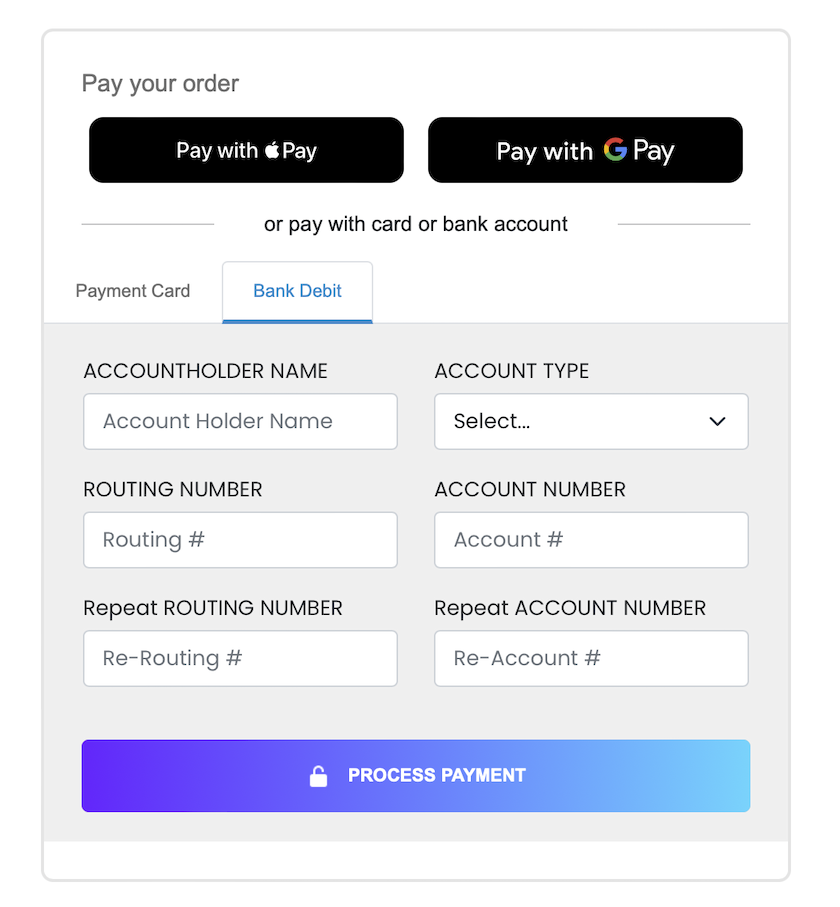
If you want to accept digital wallet payments along with card or ACH payments, you can load both the [EmbeddedMethod UI](../guides/pay-in-components-embeddedmethod-ui) and ExpressCheckout UI components on the same webpage. You can also use `updateConfig` to switch between component configurations on your page.
The code example renders the components in this image:
```html ExpressCheckout, ACH, and Card example
```
## Related resources
See these related resources to help you get the most out of Payabli.
* **[Apple Pay overview](/guides/pay-in-wallets-apple-pay-overview)** - You must have at least one wallet service implemented before using Express Checkout
* **[Google Pay™ overview](/guides/pay-in-wallets-google-pay-overview)** - You must have at least one wallet service implemented before using Express Checkout
* **[Embedded components overview](/guides/pay-in-components-overview)** - Learn how to use Payabli's embedded components to create customized checkout experiences without handling sensitive payment information yourself
 ```html ExpressCheckout, ACH, and Card example