> This is Payabli documentation. For a complete page index, fetch https://docs.payabli.com/llms.txt — append .md to any page URL for lightweight markdown. For section-level indexes, query parameters, and other AI-optimized access methods, see https://docs.payabli.com/ai-agents.md
# Retry a transaction (UI)
> Rerun an existing transaction from the Transactions report to recover a declined payment or repeat a charge
**Charge Again** lets you rerun an existing transaction without starting from scratch: the form pre-fills with the original customer and payment details. Use it to recover a declined payment, repeat a charge, or resubmit after a customer updates their payment method.
## Find transactions to retry
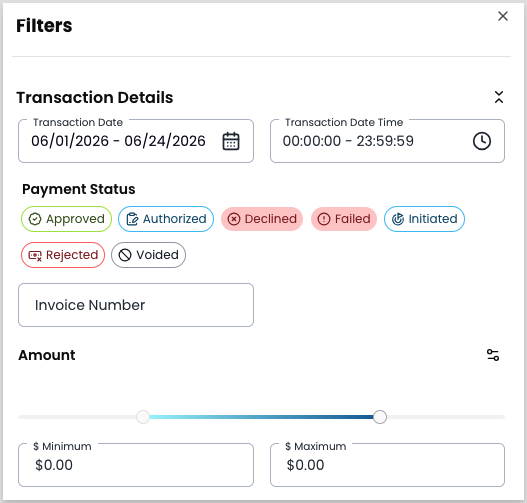
Navigate to **Pay In > Reports > Transactions**. Filters let you narrow the report to show only transactions that match specific criteria. Use them to locate a particular payment, isolate transactions by customer or date range, or focus on a specific status.
To filter rows, click **Filters**. Filters are grouped into four categories: **Transaction Details**, **Payment Method**, **Customer Information**, and **Processing Information**.
Filter behavior:
* For fields that accept multiple selections, the filter uses OR logic: selecting **Declined** and **Failed** as Transaction Status values returns transactions matching either status.
* For string fields, unquoted text matches partially. For example, filtering Customer Name with `Rivera` matches any customer whose name contains that string. Wrap a value in quotes for an exact match: `"Maria Rivera"` returns only that customer.
* Some string filters also offer an **Exclude values** toggle, which inverts the filter — returning all transactions except those matching the value you entered.
 For filter options and saved views, see [Manage Pay In transactions](/guides/pay-in-portal-transactions-reports).
## Run Charge Again
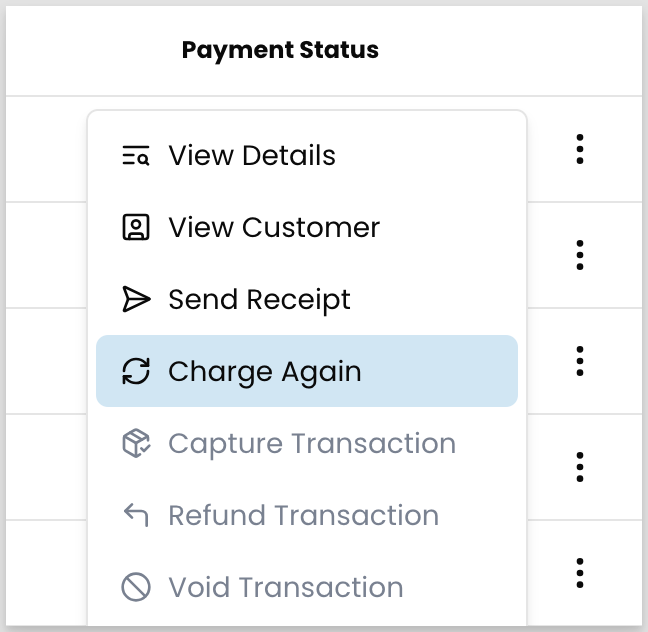
Locate the transaction, click the three-dot icon, and select **Charge Again**.
For filter options and saved views, see [Manage Pay In transactions](/guides/pay-in-portal-transactions-reports).
## Run Charge Again
Locate the transaction, click the three-dot icon, and select **Charge Again**.
 * **Sale** — processes the payment immediately
* **Authorize** — reserves the funds; you must capture them separately before they settle. See [Capture an authorized transaction](/guides/pay-in-portal-transactions-create#capture-an-authorized-transaction).
Adjust the amount or description as needed, or click **Search or add an item** to modify the itemized charges. You can select existing catalog items or save new ones to your catalog.
Optionally, enter an invoice number.
Select a stored payment method or enter new payment details. Optionally, check **Save payment details for future use** to store the method.
Add any notes, then click **Review** to confirm the transaction details. Click **Charge Now** to request the payment again.
If notifications are enabled at the paypoint, the customer receives a receipt at their email address.
## Handle a second decline
To retry a declined payment, locate it in the report, select **Charge Again**, and try a different payment method. **Charge Again** is available on any transaction regardless of status — including refunds.
If the card is declined a second time, ask the customer to contact their bank before retrying.
If you see a system error rather than an issuer decline, the error isn't related to the customer's card. Retry the transaction. If the error persists, escalate to Payabli support.
## Related resources
See these related resources to help you get the most out of Payabli.
* **[Manage Pay In transactions (Portal)](/guides/pay-in-portal-transactions-reports)** - Use the Transactions report to locate the transaction you want to retry
- **[Create a transaction (UI)](/guides/pay-in-portal-transactions-create)** - Initiate a payment from the Payabli Portal and capture authorized transactions
* **Sale** — processes the payment immediately
* **Authorize** — reserves the funds; you must capture them separately before they settle. See [Capture an authorized transaction](/guides/pay-in-portal-transactions-create#capture-an-authorized-transaction).
Adjust the amount or description as needed, or click **Search or add an item** to modify the itemized charges. You can select existing catalog items or save new ones to your catalog.
Optionally, enter an invoice number.
Select a stored payment method or enter new payment details. Optionally, check **Save payment details for future use** to store the method.
Add any notes, then click **Review** to confirm the transaction details. Click **Charge Now** to request the payment again.
If notifications are enabled at the paypoint, the customer receives a receipt at their email address.
## Handle a second decline
To retry a declined payment, locate it in the report, select **Charge Again**, and try a different payment method. **Charge Again** is available on any transaction regardless of status — including refunds.
If the card is declined a second time, ask the customer to contact their bank before retrying.
If you see a system error rather than an issuer decline, the error isn't related to the customer's card. Retry the transaction. If the error persists, escalate to Payabli support.
## Related resources
See these related resources to help you get the most out of Payabli.
* **[Manage Pay In transactions (Portal)](/guides/pay-in-portal-transactions-reports)** - Use the Transactions report to locate the transaction you want to retry
- **[Create a transaction (UI)](/guides/pay-in-portal-transactions-create)** - Initiate a payment from the Payabli Portal and capture authorized transactions