# Build your own components
> Build custom PCI-compliant payment components without code using Creator. Design branded embeddable forms and reports that match your look and feel with visual no-code tools
Creator is currently in beta release. Only reports are embeddable at this time. You build and preview Pay In and Pay Out components, but you can't make transactions with them yet.
Use Payabli's Creator tool to build your own embeddable components, customized fully for your needs and your brand's look and feel.
To access Creator, navigate to **Developers > Creator** in PartnerHub.
## Using Creator
### Creator token
Before you can build components, you need to get an API token that's configured for use with Creator.
Add a new token using [these instructions](/developers/api-reference/api-overview#authentication), making sure that you select **Yes** for *Creator Token?*.
#### Domain restrictions
When creating the token, you must add the domains that you plan to embed Creator components on. This feature is for security, and it limits where components can be displayed: they can't be displayed on a domain that **isn't** listed on the token.
Just add any allowed domains while creating the API token. For example, if you plan to embed Creator components on `https://app.myproduct.com` and `https://yourapp.myproduct2.com`, then add `https://app.myproduct.com` and `https://yourapp.myproduct2.com` in the Domain Restrictions section.
To use the Test feature in Creator, you must add
`https://partner-sandbox.payabli.com/`
to the Domain Restriction section.
When you have a Creator token, navigate to Creator's **Settings** screen, and paste it into the **Integration Token** field.
### Build components
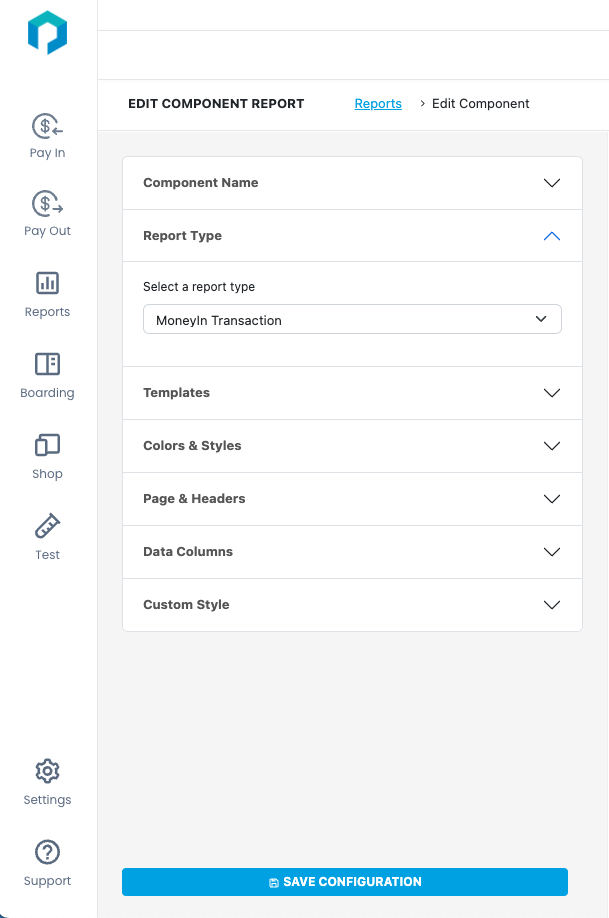
Building components is straightforward. Use the editor to create and style your components.
 ### Embed components
After you've built your component, embedding the component in your app or website is easy. You need to create a hash value for the target paypoints and then grab the integration code.
#### Hashing function
First, use the hashing function to create a hash for the entrypoint you want to use the component with. The hashing function is used to generate the unique hash value for each paypoint. This hash value goes in to the `Entry` parameter in the integration code. The hash value designates which paypoint the component will display data for or attribute actions to.
For testing, Creator has a drop down menu that lets you choose a paypoint to generate a hash for. For more extensive integrations, Payabli recommends embedding the hashing function in your app so you can quickly generate hash values for any of your entrypoints.
**Hashing function use case:**
When you board a merchant, you receive 'activated Merchant' webhook which provides the new merchant's entrypoint ID (entryname).
You can then use the hashing function implemented within your app's code to programmatically generate the unique hash for the new paypoint.
You store and use that hash for any Creator implementation for that paypoint.
This is an example of the hashing function that you can embed in your app. There are other code languages available in Creator.
Replace `entryName` with the entryname for the paypoint, and replace `secretKey` with your Creator API token (also known as "Integration Token" in Creator settings). See the [Creator token](/guides/platform-creator-overview#creator-token) section for more info.
```javascript
const generateSecretKey = (secretKey) => {
return crypto.createHash('md5').update(secretKey).digest('hex');
}
export const encryptEntry = (entryName, secretKey) => {
const iv = crypto.randomBytes(16);
const cipher = crypto.createCipheriv(
'aes-256-cbc',
generateSecretKey(secretKey),
iv
);
let encrypted = cipher.update(entryName);
encrypted = Buffer.concat([encrypted, cipher.final()]);
return iv.toString('hex') + ':' + encrypted.toString('hex');
}
```
#### Copy the integration code
The integration code displays in Creator, so when you're ready, you can copy the code to embed it in your app. Here's an example of the integration code for a transaction report component.
```html Report Component Example
Payabli
```
## Test components
You can test components in Creator. Copy the integration code, click **Test**, paste the code in, and then click **Try your embedded HTML**. The rendered component is displayed in on the right side of the screen. If you get an error, make sure that the API token you're using has `https://partner-sandbox.payabli/` added in the Domain Restriction section.
### Embed components
After you've built your component, embedding the component in your app or website is easy. You need to create a hash value for the target paypoints and then grab the integration code.
#### Hashing function
First, use the hashing function to create a hash for the entrypoint you want to use the component with. The hashing function is used to generate the unique hash value for each paypoint. This hash value goes in to the `Entry` parameter in the integration code. The hash value designates which paypoint the component will display data for or attribute actions to.
For testing, Creator has a drop down menu that lets you choose a paypoint to generate a hash for. For more extensive integrations, Payabli recommends embedding the hashing function in your app so you can quickly generate hash values for any of your entrypoints.
**Hashing function use case:**
When you board a merchant, you receive 'activated Merchant' webhook which provides the new merchant's entrypoint ID (entryname).
You can then use the hashing function implemented within your app's code to programmatically generate the unique hash for the new paypoint.
You store and use that hash for any Creator implementation for that paypoint.
This is an example of the hashing function that you can embed in your app. There are other code languages available in Creator.
Replace `entryName` with the entryname for the paypoint, and replace `secretKey` with your Creator API token (also known as "Integration Token" in Creator settings). See the [Creator token](/guides/platform-creator-overview#creator-token) section for more info.
```javascript
const generateSecretKey = (secretKey) => {
return crypto.createHash('md5').update(secretKey).digest('hex');
}
export const encryptEntry = (entryName, secretKey) => {
const iv = crypto.randomBytes(16);
const cipher = crypto.createCipheriv(
'aes-256-cbc',
generateSecretKey(secretKey),
iv
);
let encrypted = cipher.update(entryName);
encrypted = Buffer.concat([encrypted, cipher.final()]);
return iv.toString('hex') + ':' + encrypted.toString('hex');
}
```
#### Copy the integration code
The integration code displays in Creator, so when you're ready, you can copy the code to embed it in your app. Here's an example of the integration code for a transaction report component.
```html Report Component Example
Payabli
```
## Test components
You can test components in Creator. Copy the integration code, click **Test**, paste the code in, and then click **Try your embedded HTML**. The rendered component is displayed in on the right side of the screen. If you get an error, make sure that the API token you're using has `https://partner-sandbox.payabli/` added in the Domain Restriction section.