

Manage API credentials (Portal)
Manage API credentials (Portal)
Use the API Credentials screen to create and manage credentials for your Payabli integrations. Each credential consists of a Client ID and a Client Secret. Your integration exchanges them at the token endpoint for a short-lived Bearer access token, then sends that token on API requests. The Client ID and Secret themselves aren’t sent on each call. See OAuth authentication for the full flow. Credentials are separate from API tokens, which use a requestToken header.
Navigate to Developers > API Credentials in the Payabli Portal. The screen shows a filterable report of all credentials in your organization.
Create credentials
Fill in the basic information
Fill in the following fields:
- Description — Enter a descriptive name to identify this credential later.
- Credential Lifetime — Choose 30, 60, 90, or 120 days, or 1 year. Payabli recommends 90 days.
The Organization or Paypoint field shows the scope for this credential. It’s determined by the entrypoint where you’re creating it. Most integrations use organization-level credentials.
Set permissions
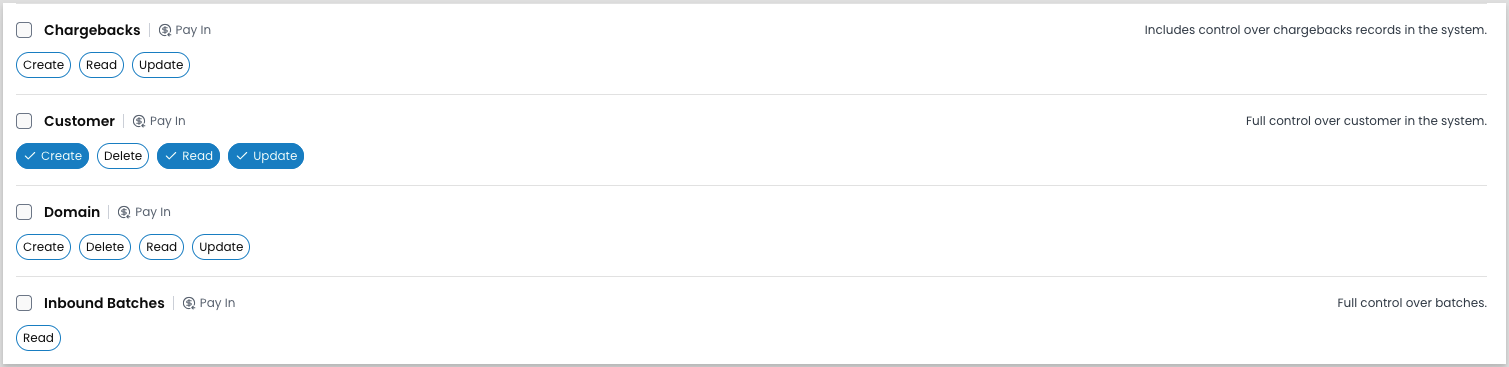
Select a permission group or search for individual permissions:
- Use the category checkbox to select all permissions in a category at once.
- Select individual permission buttons to fine-tune access.
Generate and save your credentials
Click Generate Credentials. Payabli generates a Client ID and a Client Secret.
The Client Secret is only shown once — copy both credentials and store them securely before leaving this page. You need both to request an access token.
Copying isn’t the final step. The credential isn’t created until you finish Review and click Create Credential. If you leave before then, no credential exists and the values you copied won’t authenticate.
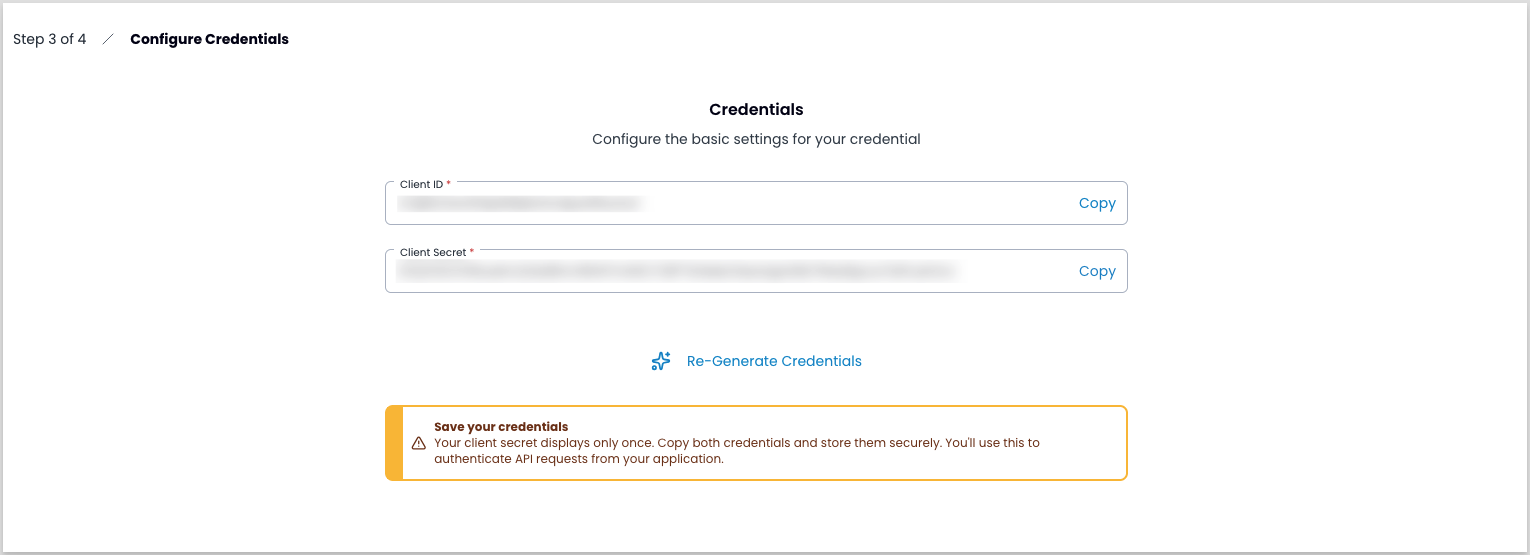
To generate different credentials, click Re-Generate Credentials and copy the new values.
Review and confirm
Click Review and verify the credential summary:
- Basic information: organization/paypoint, description, and credential lifetime
- The Client ID (the Client Secret is redacted in this view)
- A summary of all permissions associated with this credential, including the total count
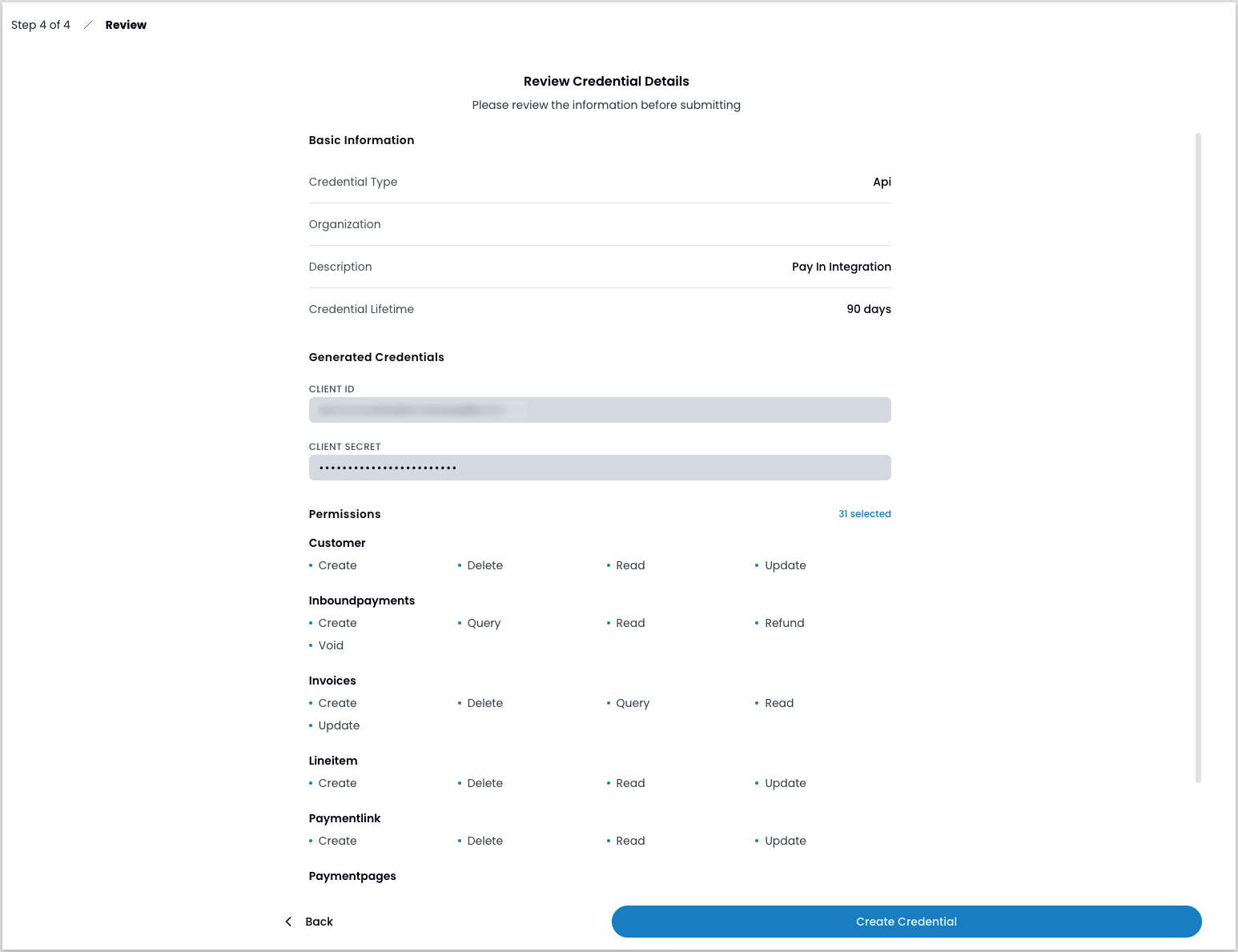
Click Create Credential to finish.
Refresh credentials
You can renew credentials that are close to expiring without creating a new credential from scratch.
-
Use the filters to find the credentials you want to renew.
-
Click the three-dot icon in the row, then click Edit Permissions. This opens the renewal flow even if you don’t need to change permissions.
-
Adjust any permissions if needed. If no changes are required, click Next.
-
Click the Re-Generate Client Secret link.
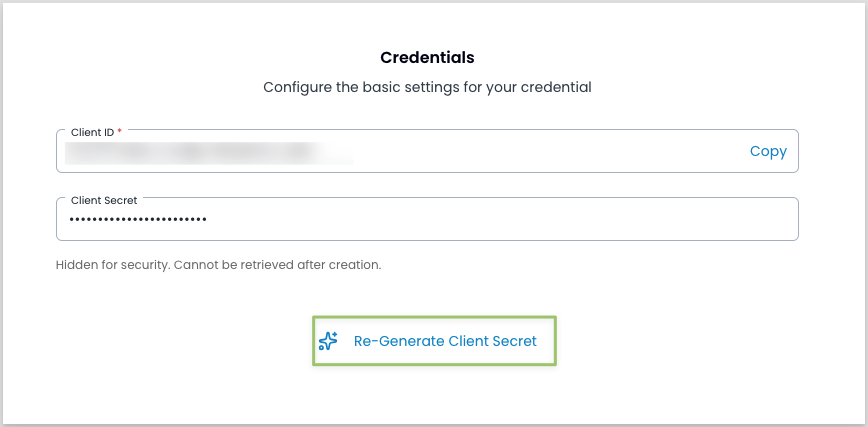
Re-Generate Client Secret link If you skip this step, the original Client Secret continues to be used and expires on its original expiration date.
-
Copy the new Client Secret and update your application before proceeding.
-
Click Review, confirm the details, then click Update Credential.
The Credential Lifetime and Last Updated fields update in the report, and your new Client Secret becomes active immediately. The old secret stops working at the same time, with no overlap window, so update your integration as part of the rotation. Access tokens already issued keep working until they expire (their expires_in, for example one hour in sandbox).
Update permissions
- Use the filters to find the credentials you want to update.
- Click the three-dot icon in the row, then click Edit Permissions.
- Add or remove permissions, then click Next.
- Click Review, confirm the changes, then click Update Credential.
If you also regenerate the Client Secret during this flow, update your application with the new secret before the old one expires.
Delete credentials
Deleting credentials is permanent. Any integrations that use these credentials will stop authenticating.
- Use the filters to find the credentials you want to delete.
- Click the three-dot icon in the row.
- Click Delete API Credentials.
- Click Delete to confirm.