

Respond to a card dispute (Portal)
Respond to a card dispute (Portal)
When a chargeback is initiated, the disputed funds are immediately debited from the merchant’s account. You’re responding to recover money that’s already gone. You have until the Reply By date on the dispute record to either submit evidence defending the transaction or accept liability and close it as a loss. Missing the deadline is an automatic loss.
For background on the full chargeback process, see Payment disputes. To find the dispute first, see Find and review card disputes.
Responding to a dispute requires an Admin or Manager role. You can respond from either the organization or paypoint level.
Decide whether to respond or accept liability
Both are legitimate responses — the right choice depends on whether you have evidence that the transaction was valid.
Dispute the chargeback if you have documentation showing the transaction was authorized and fulfilled. Evidence can include a signed receipt, delivery confirmation, or correspondence with the customer. Submitting a dispute doesn’t guarantee a win, but an unanswered dispute is always a loss.
Accept liability if the chargeback is valid, the transaction was genuinely unauthorized, or you don’t have documentation to support a defense.
Retrieval requests don’t have a liability question. You respond with documentation or risk escalation to a chargeback. See Respond to a retrieval request.
Respond to a chargeback
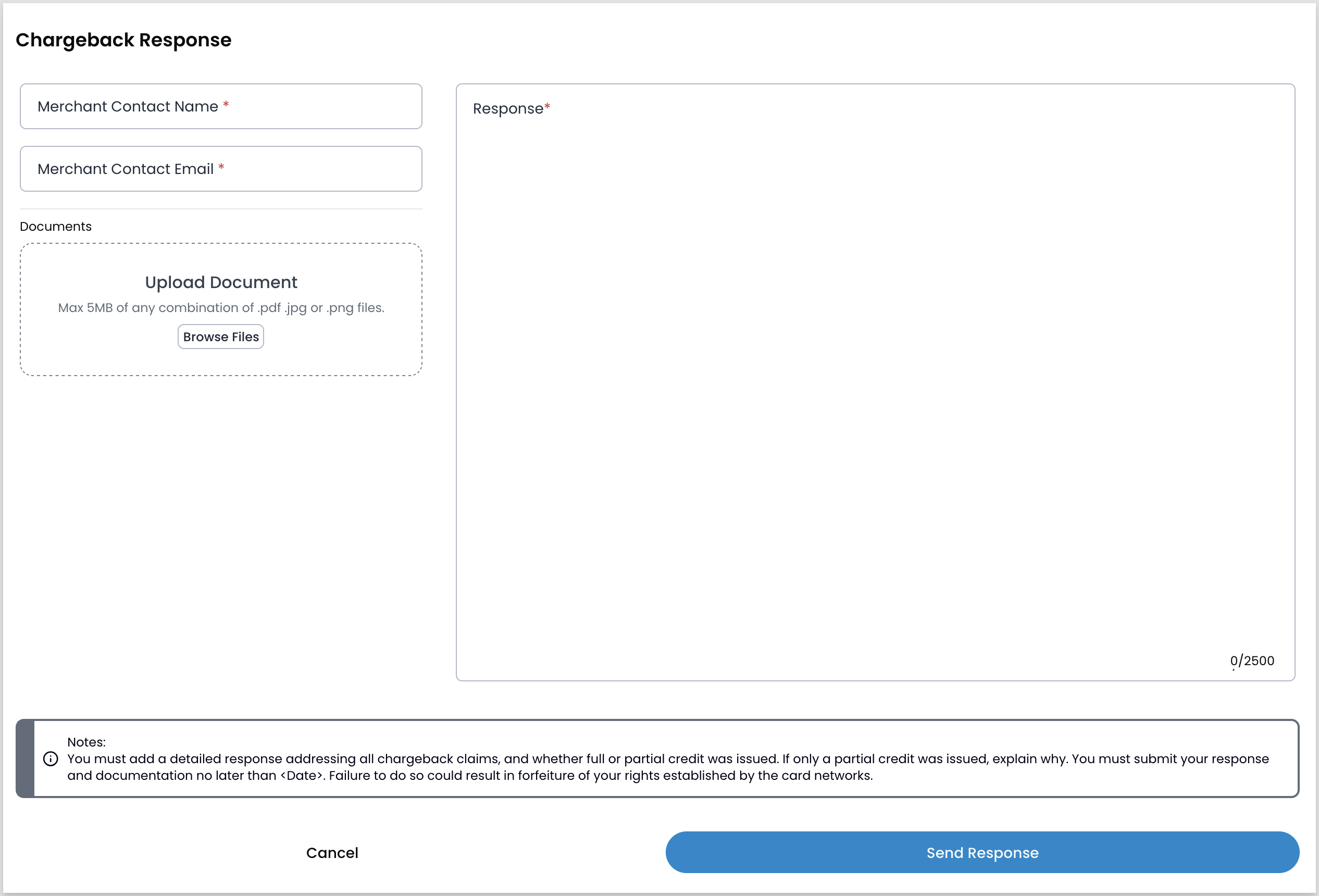
Your response must address every claim in the dispute and state whether any credit was issued to the customer. If you issued a partial refund, explain why the full amount wasn’t credited. Card network rules require this disclosure.
- Locate the dispute. See Find and review card disputes if you need help.
- Open the dispute panel and click Respond to Dispute.
- Enter the Merchant Contact Name and Merchant Contact Email.
- Upload your supporting documentation. You can upload 5 MB of PDF, PNG, and JPG files.
- Enter your response as text into the modal, addressing each claim in the dispute (you have a maximum of 2500 characters).
- Click Send Response.
Your response goes to Payabli’s chargeback team, who submits it to the card processor on your behalf. It isn’t submitted directly to the card network. The dispute status moves to Pending while the response is under review.
For guidance on what documentation to include, see Chargeback documentation requirements.
Respond to a retrieval request
A retrieval request is an information request from the issuing bank. Unlike a chargeback, no funds are withdrawn when one is initiated. If you don’t respond or the documentation isn’t satisfactory, the issuer may escalate to a chargeback.
- Locate the retrieval request. See Find and review card disputes if you need help.
- Open the dispute panel and click Respond to Dispute.
- Upload your supporting documentation. You can upload 5 MB of PDF, PNG, and JPG files.
- Add a response explaining the transaction details.
- Click Send Response.
You can still refund the transaction while a retrieval request is open. See Payment disputes for more on how retrieval requests differ from chargebacks.
Accept liability for a chargeback
- Locate the dispute. See Find and review card disputes if you need help.
- Open the dispute record and click Accept Liability.
- Enter a reason for accepting liability for this dispute.
- Click Accept Liability.
The dispute status changes to Closed-Lost.
Add notes to a dispute
Admins can add notes to a dispute that aren’t part of the response. Use notes to track updates and manage your card dispute cases. To add notes to a dispute:
- Locate the dispute. See Find and review card disputes if you need help.
- Open the dispute record.
- Click the Notes tab.
- Enter any notes or updates regarding this dispute. These notes are visible to other portal users with access to this dispute.
Related resources
See these related resources to help you get the most out of Payabli.
Prerequisites
- Find and review card disputes (Portal) - Find and review the dispute record before responding
References
- Payment disputes - Learn how payment disputes like chargebacks and ACH returns work