

Manage autopays
From the Autopays report in the Payabli Portal, you can monitor, update, and cancel scheduled autopays. To set up a new autopay, see Create an autopay.
Autopays are often called subscriptions by business users, and Pay In autopays are called subscriptions in the Payabli API. If you’re looking for API-based subscription management, see Manage subscriptions with the API.
Monitor autopays
To view your autopays, navigate to Pay In > Reports > Autopays. This opens the Autopays report, where you can see all autopays and apply filters to narrow the view — for example, filtering by status to see only active or paused autopays.
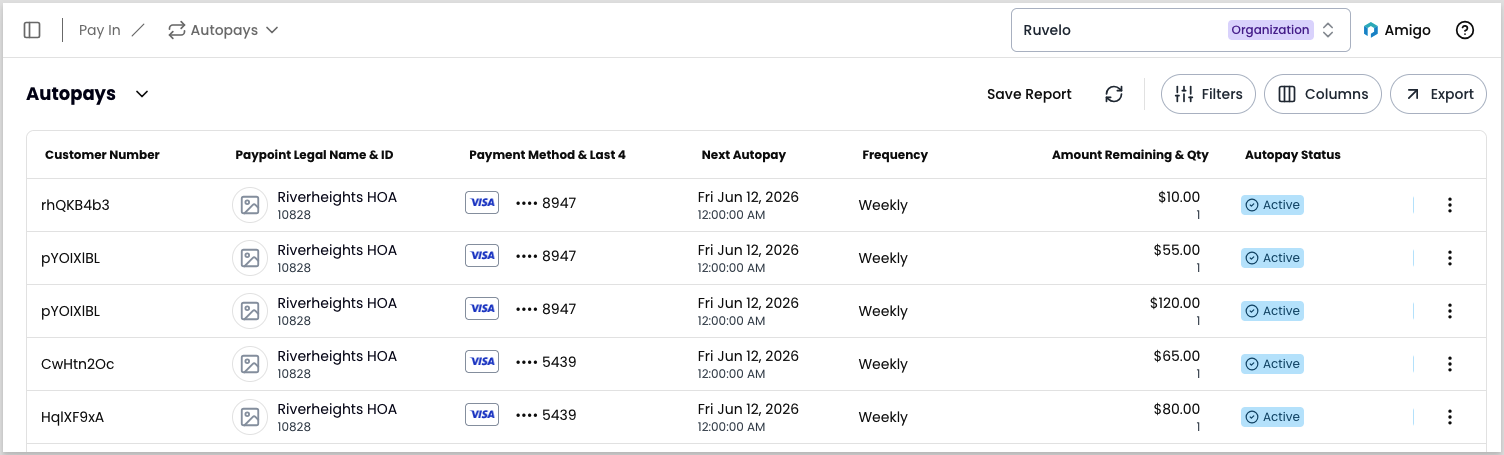
Balance-driven autopays run each night between 2:30 and 3:30 AM ET. The open balance is read and charged during that window on the configured date.
If you’re at the organization level, this report shows autopays across all your paypoints. You can filter, view, edit, pause, and cancel autopays, but you can’t create them from this report.
At the paypoint level, the report shows autopays for that paypoint’s customers only. You can create autopays from this report, in addition to all the monitoring and management actions available at the organization level.
To open an autopay’s details, click its row in the report. You can also open the details panel from the three-dot icon:
- Locate the autopay record.
- Click the three-dot icon.
- Select View Details to open the Autopay Details panel.
You can’t edit an autopay from the Autopay Details panel. To edit, close the panel and select Edit Autopay from the three-dot icon.
Update an autopay
You can update an autopay’s schedule, or pause and resume an autopay at any time. All update actions, including payment method changes, are available from the three-dot icon.
Edit schedule
To change an autopay’s scheduled dates or frequency:
- Locate the autopay record and click the three-dot icon.
- Select Edit Autopay to open the edit modal.
- Update any of the following:
- Start date
- End date
- Frequency
- Save your changes.
Use Update Payment Method from the three-dot icon to change the payment method on an autopay. You can’t change it from the edit modal.
Pause an autopay
To pause an autopay:
- Locate the autopay record and click the three-dot icon.
- Select Pause Autopay.
- Click Pause Autopay in the confirmation modal.
Resume an autopay
To restart a paused autopay:
- Locate the autopay record and click the three-dot icon.
- Select Resume Autopay.
Cancel an autopay
Canceling an autopay is permanent and can’t be undone. Only users with the admin role can cancel autopays. If you need to cancel an autopay and don’t have this permission, contact your administrator.
To cancel an autopay:
- Locate the autopay record and click the three-dot icon.
- Select Cancel autopay.
- Click Cancel in the confirmation modal.
Related resources
See these related resources to help you get the most out of Payabli.