

Retry a transaction (Portal)
Retry a transaction (Portal)
Charge Again lets you rerun an existing transaction without starting from scratch: the form pre-fills with the original customer and payment details. Use it to recover a declined payment, repeat a charge, or resubmit after a customer updates their payment method.
Find transactions to retry
Navigate to Pay In > Reports > Transactions. Filters let you narrow the report to show only transactions that match specific criteria. Use them to locate a particular payment, isolate transactions by customer or date range, or focus on a specific status.
To filter rows, click Filters. Filters are grouped into four categories: Transaction Details, Payment Method, Customer Information, and Processing Information.
Filter behavior:
-
For fields that accept multiple selections, the filter uses OR logic: selecting Declined and Failed as Transaction Status values returns transactions matching either one.
-
For string fields, unquoted text matches partially. For example, filtering Customer Name with
Riveramatches any customer whose name contains that string. Wrap a value in quotes for an exact match:"Maria Rivera"returns only that customer. -
Some string filters also offer an Exclude values toggle, which inverts the filter — returning all transactions except those matching any values you entered.
Date filters on this report apply a fixed range. For example, if you save a report with a date filter for July 1 to July 3, 2026, reopening it later still shows that same fixed range. It doesn’t shift to “the last 3 days.”
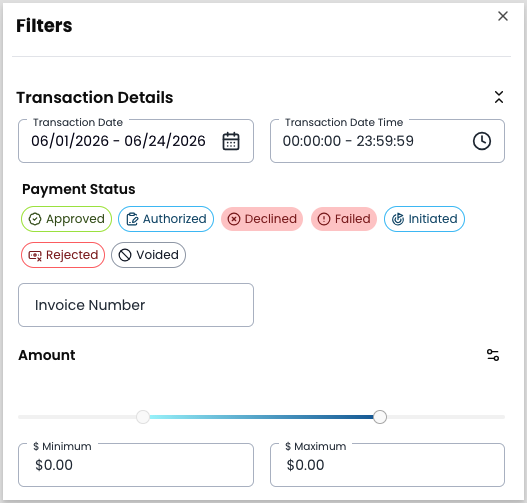
For filter options and saved views, see Manage Pay In transactions.
Run Charge Again
Open the Charge Again panel
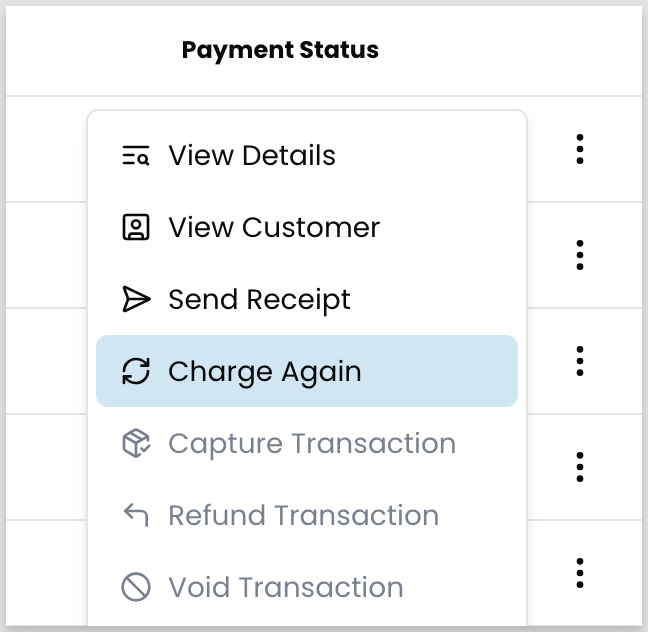
Locate the transaction, click the three-dot icon, and select Charge Again.
Choose an operation
- Sale — processes the payment immediately
- Authorize — reserves the funds; you must capture them separately before they settle. See Capture an authorized transaction.
Enter payment details
Adjust the amount or description as needed, or click Search or add an item to modify the itemized charges. You can select existing catalog items or save new ones to your catalog.
Optionally, enter an invoice number.
Handle a second decline
To retry a declined payment, locate it in the report, select Charge Again, and try a different payment method. Charge Again is available on any transaction regardless of status — including refunds.
If the card is declined a second time, ask the customer to contact their bank before retrying.
If you see a system error rather than an issuer decline, the error isn’t related to the customer’s card. Retry the transaction. If the error persists, escalate to Payabli support.
Related resources
See these related resources to help you get the most out of Payabli.
Prerequisites
- Manage Pay In transactions (Portal) - Use the Transactions report to locate the transaction you want to retry