

Create a bill (Portal)
Create a bill to record what you owe a vendor and pay it through Payabli. You can send the vendor a link or pay them directly with a stored payment method.
A new bill starts as Active and is ready to pay. To understand how a bill moves from created to paid, see Bill statuses and lifecycle.
This guide is written primarily for on-demand payouts. If your account uses Managed Payables, some of these steps may not apply the same way — the vendor chooses their payment method, and Payabli’s enablement team verifies it after the payout is captured, not right after you submit the bill. See Understanding managed payables.
Add a bill
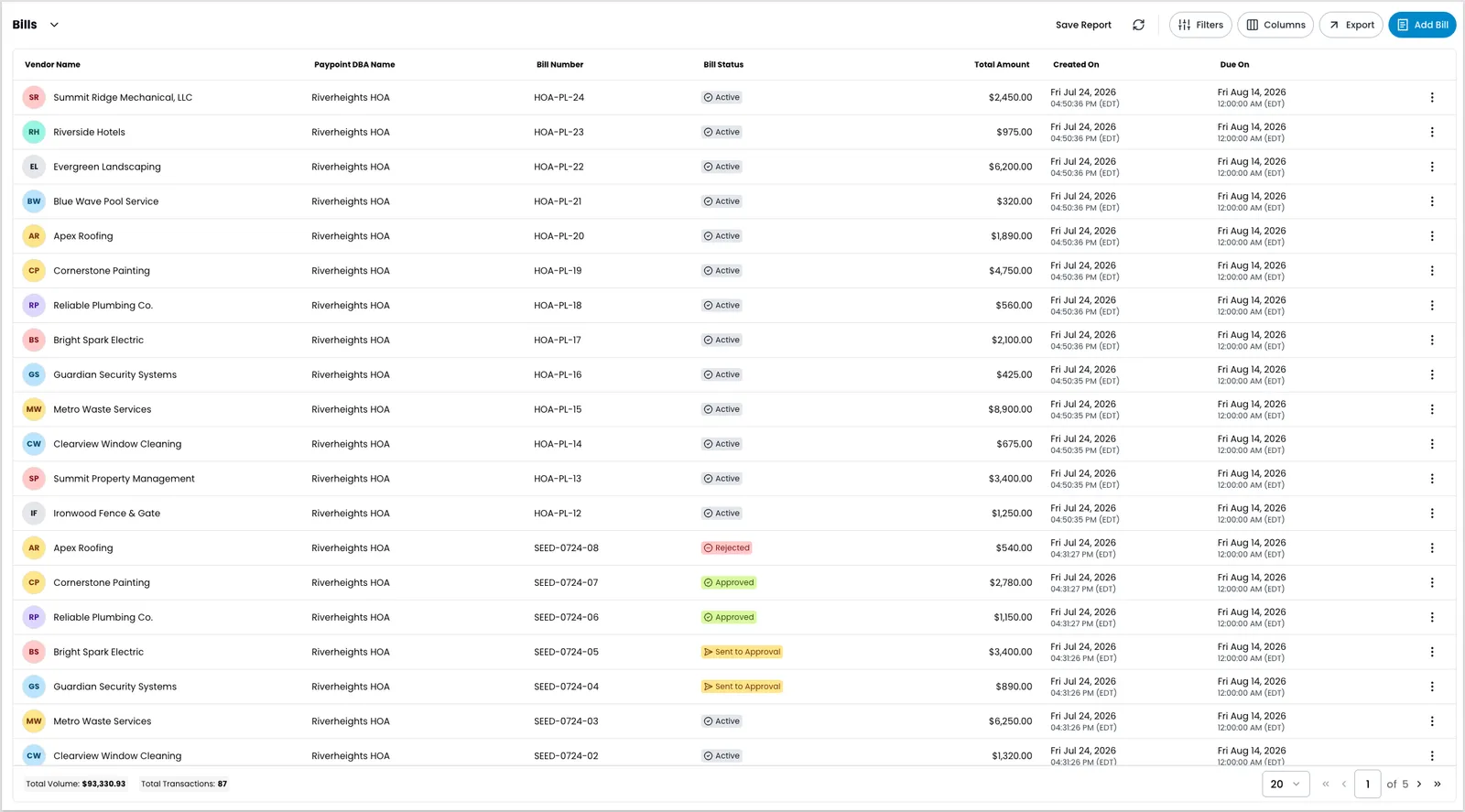
To add a bill, start from the Bills report. You can create a bill at the organization or paypoint level, and the form is the same.
Open the Add Bill form
Navigate to Pay Out > Bills and select Add Bill. As you fill out the form, a live preview updates: use the Vendor Link and Email tabs to see how the bill reaches the vendor, and the Bill image tab to see the attached document.
To fill the form from a document instead of typing it in, upload a bill image.
Select the vendor
Find an existing vendor or add a new one. Adding a vendor uses the same form as Manage vendors.
Add item details
Item details unlock after you select a vendor. Choose one:
- Enter a Total Amount — the amount you owe, plus any notes.
- Select Items from Catalog — search for and add items from your catalog, or create a new line item. After you add a line item, you can adjust its quantity or unit price.
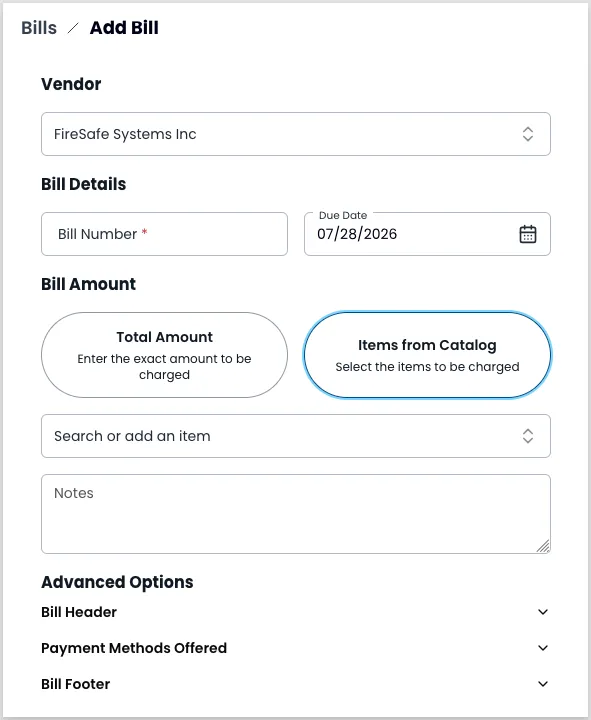
(Optional) Set advanced options
Under advanced options, set the details shown on both the vendor link and the email:
- Header — header text, description, and background color.
- Payment methods — the methods offered when you send a vendor link.
- Footer — footer text.
- Contact information — contact details shown to the vendor.
Choose a payment type
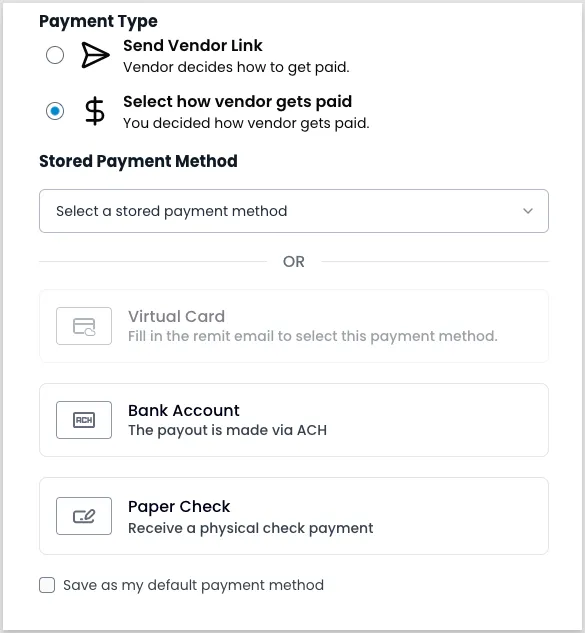
Under Payment Type, choose how to pay the bill:
- Send Vendor Link — Payabli emails the vendor a link where they choose how to receive the payment, or you share the link manually.
- Select how vendor gets paid — search for and select a stored payment method to pay the vendor directly. You can save the method as the default for future payments.
For the payment methods a vendor can receive — virtual card, ACH, or check — see Payout payment methods.
Save or pay the bill
Finish the bill based on the payment types available for you:
- Select Save Bill to save your bill and act later.
- Click Send Vendor Link to send an email to the vendor including a link where they can select their preferred payment method.
- Select Make Payment to send the transaction.
Upload a bill image
Instead of entering a bill by hand, upload the vendor’s bill and let Payabli read it for you. On the Add Bill form, click the upload area to add a bill image — a PDF, JPEG, or PNG up to 10 MB. Payabli uses optical character recognition (OCR) to parse the document and fill in the bill’s fields, including line items. Because OCR results can vary, verify the parsed details against the original bill before you save or pay.
If Payabli can’t match the bill to an existing vendor, the Add Vendor modal opens so you can add the vendor before you finish the bill.
If the bill is for an existing vendor and you don’t want to add a new one, click Cancel to go back, then adjust the vendor selection manually.
To find, view, edit, or pay a bill later, see Manage bills (Portal).
Related resources
See these related resources to help you get the most out of Payabli.
Next steps
- Manage bills (Portal) - After you create a bill, track, edit, and pay it from the Bills report