

Explore organizations and paypoints
Payabli Portal’s Portfolio screens and User Management let you understand what’s accessible from your current login context and navigate within it. For a conceptual overview of how entities are structured, see Entities overview.
Payabli entities are organized in layers: your organization can contain sub-organizations or paypoints, and each sub-organization can contain more sub-organizations or paypoints. What you see in the Portfolio > Organizations report is scoped to your login context. From a partner organization, an admin sees their direct sub-organizations. A sub-organization admin sees only what’s at or below their level. For why access cascades this way, see Access scoping.
Browse organizations and sub-organizations
To view all sub-organizations under your current context, navigate to Portfolio > Organizations using the sidebar.
This loads a report of all sub-organizations under your current context. You can filter the report by organization details (name, creation date, and so on) or by the number of paypoints assigned to each organization.
From the Organizations report, you have a few ways to open any sub-organization:
- Action menu: Click ⋮ in the row and select Go to organization to open it in a new tab.
- Record page: Click the organization name, then click Open Organization.
- Search: Type the organization name in the context dropdown to jump there directly.
In an organization’s dashboard, the Sub-Organizations tab shows sub-organizations nested under it — with the same three options available.
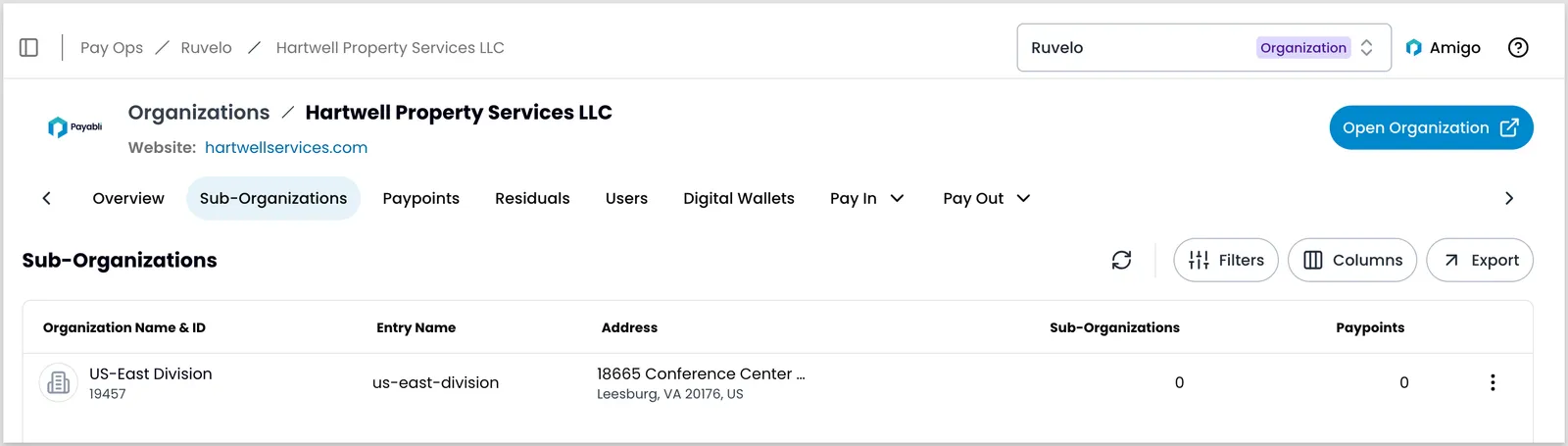
Ruvelo (the current context) contains Hartwell Property Services LLC, which in turn contains US-East Division. You can reach each from the report action menu, the record’s button, or the navigation bar search.
Browse paypoints
Navigate to Portfolio > Paypoints for a flat, filterable list of all paypoints under your current context, including those in sub-organizations.
If you want to scope by organization first:
- Navigate to Portfolio > Organizations.
- Click the organization you want to review.
- Click the Paypoints tab on the organization details page (not the sidebar).
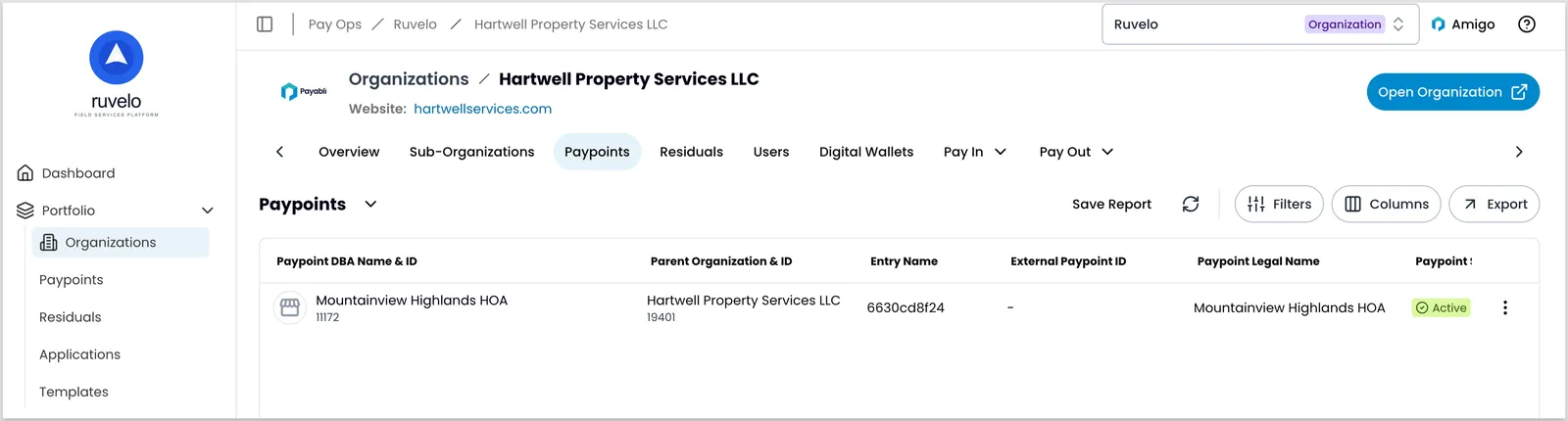
To navigate to a paypoint from either view, select it from the report and click Go to Paypoint. This opens that paypoint’s dashboard, and your URL shifts to app.payabli.com/{paypoint-id}.
Navigate to a specific context
The navigation bar search is the most direct way to jump to any organization or paypoint you have access to, regardless of your current context.
Click the dropdown in the navigation bar showing your current context, type the name of the entity you want, and select it from the results.
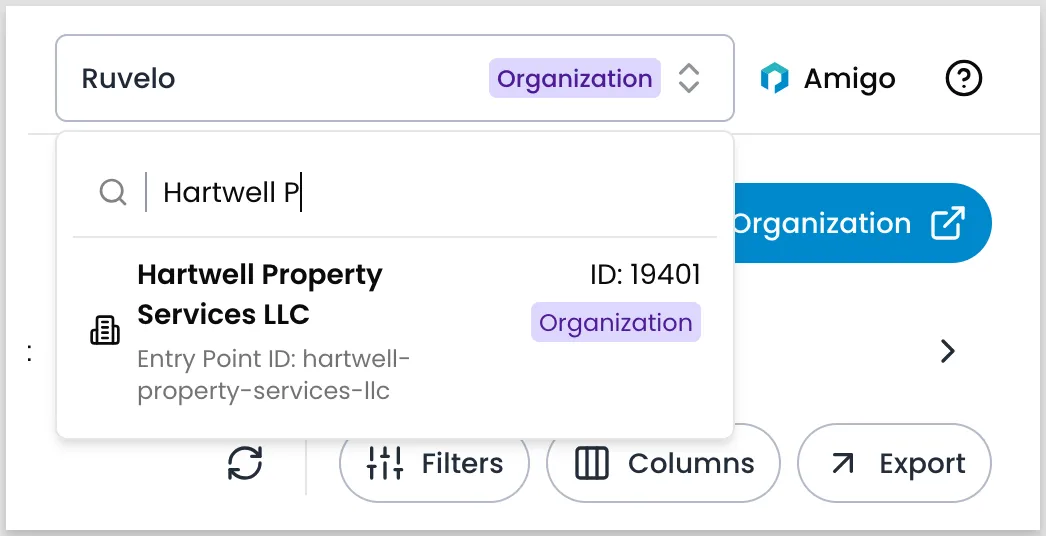
To navigate directly to any org or paypoint, go to app.payabli.com/{org-slug} or app.payabli.com/{paypoint-id}. To find a slug, navigate to the org or paypoint using the name search, then copy it from your browser’s URL bar.
If you need slugs programmatically — for example, when building direct links or configuring an integration — retrieve them from the OrgEntryName field on the Get Organization endpoint.
Understand your org structure
The Portfolio reports show flat lists — they don’t show which organizations contain which.
To see all entities in your hierarchy, browse the Portfolio reports and the Sub-Organizations tab on each organization record.
To see the organizations above your current context, navigate to Settings > Organization Details. The Organization Structure section lists all organizations your current context sits under and links to each one. This is useful if you need to navigate up or find an org’s slug.
Related resources
See these related resources to help you get the most out of Payabli.
Prerequisites
- Entities overview - Understand the entity hierarchy before navigating between organizations and paypoints