

Capture a check with your phone
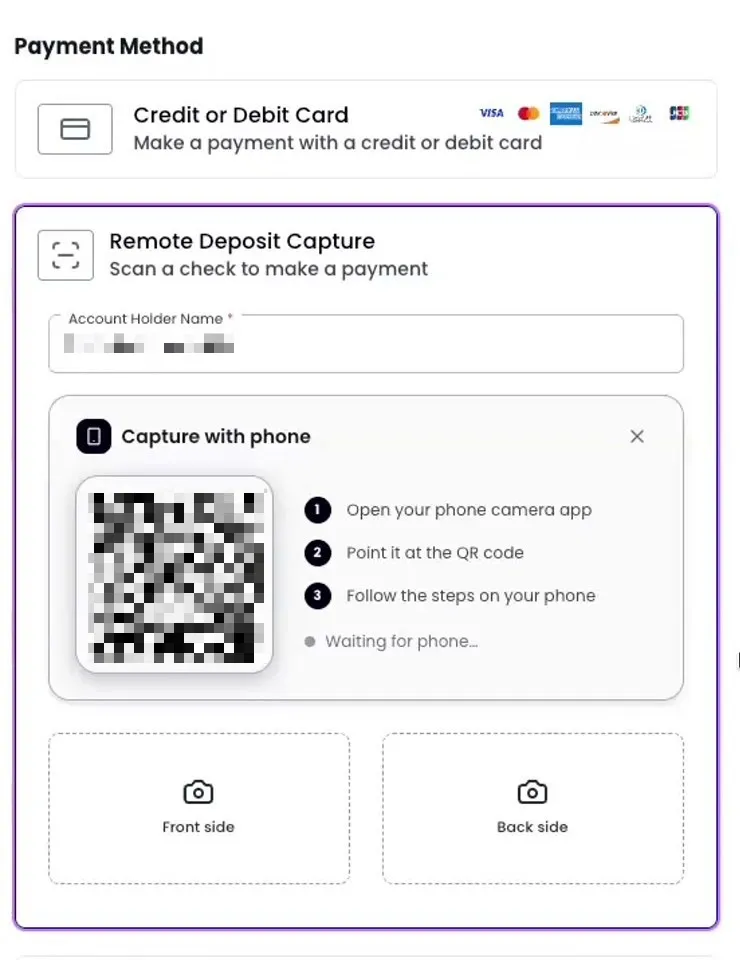
When you take a check payment in the Virtual Terminal, you can capture the physical check with your phone instead of plugging in a scanner or uploading files. You photograph both sides on your phone, and your desktop picks up the verified images in real time the moment they pass validation. Phone and desktop stay in sync through capture, validation, and hand-off.
Considerations
Before you start, keep the following in mind:
- RDC must be enabled. Cross-device capture is available when Remote Deposit Capture (RDC) is enabled in the Virtual Terminal.
- Only certain checks are eligible. The same Back Office Conversion (BOC) rules apply: only consumer checks received in person at a staffed location qualify. See the RDC overview for the full list.
- You need a desktop and a phone. Use a desktop browser open to the Virtual Terminal and a phone with a working camera.
- No app required. The phone uses its native camera app and browser to scan the code and photograph the check. There’s nothing to install.
- One phone per session. The QR code pairs a single phone with this desktop session, and it’s valid for about 10 minutes. If it expires before the phone finishes, the desktop shows an expired state with a Regenerate button that creates a new code in place.
- Images stay in Payabli. Check images stay inside Payabli’s RDC pipeline and are never saved to the phone’s photo library.
- Nothing else about RDC changes. Cross-device capture changes only how you collect the photos. BOC rules, image requirements, settlement timelines, fees, and reporting are unchanged. To integrate RDC programmatically, see the RDC developer guide.
Capture a check with your phone
-
In the Virtual Terminal, enter the payment details, choose Remote Deposit Capture as the payment method, and fill in the Account holder name.
-
Below the check slots, click Use phone camera instead to show the QR code.
-
On the phone, scan the QR code with the camera app. Tap each slot to photograph the front and back of the check, then tap Process check.
Capture both sides with good lighting, no glare, and the entire check inside the frame. If the MICR line, CAR, or LAR is unreadable, validation rejects the image and you’ll need to retake the photo. See check image requirements for the full list.
-
Wait for Payabli to validate both images. When they pass, the desktop picks up the verified images automatically and you’ll see a confirmation message.
-
On the desktop, complete any remaining fields, then click Review and Charge Now to submit the payment.
Troubleshooting
The phone screen doesn't load after scanning
The QR code encodes a one-time URL tied to this desktop session. Check that the phone has an internet connection and try scanning again. If the code has expired, click Regenerate on the desktop to create a new one and scan it again.
The QR code expired
The code is valid for about 10 minutes. If the phone doesn’t finish in that window, the desktop shows an expired state. Click Regenerate to create a new code in place, then scan it again.
The desktop still says “Waiting for phone”
The phone hasn’t reached the capture screen yet, or the connection dropped. The status flips to Phone connected within a second of the phone loading the page. If it doesn’t, scan the QR code again on the same phone.
The phone says “Desktop disconnected”
The desktop panel was closed, refreshed, or navigated away from while the phone was capturing. Go back to the desktop, generate a new QR code, and scan it again.
An image was rejected
Retake the photo with more light and the full check inside the frame. Common rejections come from glare on the MICR line, a partially cropped check, or a missing endorsement on the back.
The phone tab closed by accident
As long as the desktop panel is still open, scan the same QR code again from the same phone to resume. If the panel closed, start again from step 1.
Related resources
See these related resources to help you get the most out of Payabli.
Prerequisites
- Capturing in-person checks - Understand RDC and Back Office Conversion eligibility before capturing checks