

Manage Pay In batches and funding (Portal)
Batches are collections of transactions grouped together for processing at one time. Access your Pay In Batches report at Transactions > Batches to track batch status, monitor funding progress, and export settlement data. If you’re a partner, you use the report to monitor batch and funding activity across your organization. If you’re a merchant, you use it to track when your transactions settle and download reports for reconciliation.
If you manage more than one paypoint, the Batches report will showcase all batches within your organization. The steps in this guide work for both levels of access.
To list batches and funding events programmatically, use the List batches for a paypoint and List batch details for a paypoint API endpoints.
Monitor batches
Each batch record shows a batch status, a transfer status, funding amounts, and close date. Open batches are still collecting transactions. Once a batch closes, it moves through a transfer and funding sequence that typically completes without any action on your part. Your paypoint’s daily cutoff time controls when a batch closes — see Custom batch times to set a different time.
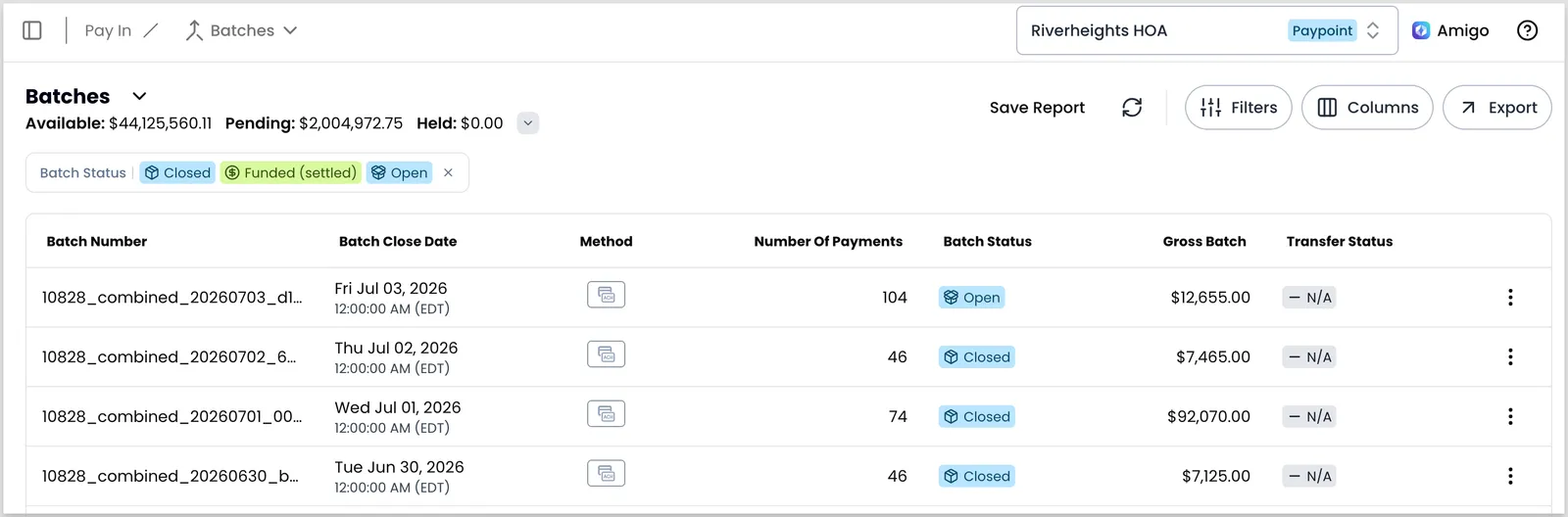
For what each status means, which ones need follow-up, and how batch tagging works, see Batches overview.
Customize reports
Use columns, filters, and saved views to control what the Batches report shows.
Customize the report view
Add columns when you need details beyond the default view. Click Columns, select the columns you want, and click Save. The available columns are grouped into batch-level details and transfer-level details. This matches the batch and transfer status tracks described in Batches overview.
Available Batches columns
- Batch Number
- Organization Name & ID
- Paypoint Legal Name & ID
- External Paypoint ID
- Batch Close Date
- Expected Deposit Date
- Method
- Number Of Payments
- Batch Status
- Gross Batch
- Service Fee
- Net Batch
- Processor
- Paypoint DBA Name
Available Transfers columns
- Transfer ID
- Transfer Date
- Gross Amount
- Transfer Status
- Chargebacks
- ACH Returns
- Billing & Fees
- Adjustments
- Third Party Paid
- Held Amount
- Release Amount
- Split Amount
- Transfer Total
Filter batches
Filters let you narrow the report to show only the batches that match specific criteria. Use them to locate a particular batch, isolate batches by close date, or focus on a specific status.
To filter rows, click Filters. Filters are grouped into three categories: Batch Details, Payment Method, and Transfer Details.
Filters in this report work like this:
- For fields that accept multiple selections, the filter uses OR logic: selecting two batch statuses returns batches matching either one.
- For string fields, unquoted text matches partially. For example, filtering the paypoint with
Riverheightsmatches any paypoint whose DBA name contains that string. Wrap a value in quotes for an exact match:"Riverheights HOA"returns only that paypoint.
Date filters on this report apply a fixed range. For example, if you save a report with a date filter for July 1 to July 3, 2026, reopening it later still shows that same fixed range. It doesn’t shift to “the last 3 days.”
Save a custom batches report
Once you’ve set up a filter and column combination you want to reuse, click Save Report to save it as a named view. Saved reports let you return to the same filtered state without reconfiguring filters each time.
To access a saved report, click the dropdown beside Batches. Select your report from the list of saved reports.
View a batch’s transaction report
To view the transactions in a batch and other batch details, follow these steps:
- Locate the batch record you want to view.
- Click the three-dot icon, and select View Transactions.
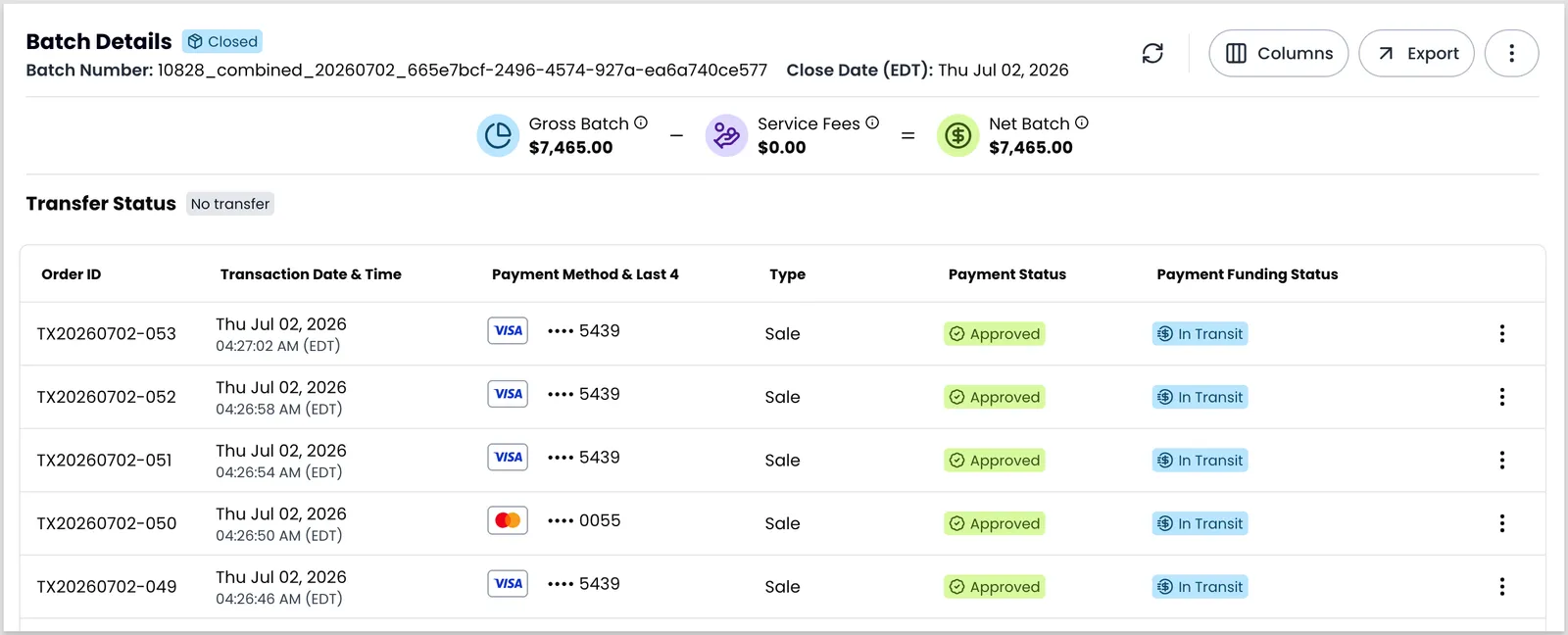
- In the Batch Details panel, you see:
- Batch details including status, close date (if closed), gross amount, service fees, net amount, and transfer amount
- Individual transaction records with customizable columns showing amount, ID, date, payment method details, type, and status
You can adjust the columns shown, but you can’t filter within a batch’s transaction report. To export the report, click Export, then select CSV or XLSX.
For open batches, some values may change as transactions are processed.
View an individual transaction
To view details for an individual transaction:
- Find the transaction in the list.
- Click the three-dot icon in the Actions column.
- Select View Details to open the Quick View panel.
Export batch data
You can export batch data from the batch list, or from within an open batch’s transaction view.
To download your current batch report:
- Select a saved report or customize your report to present the data you’re interested in.
- Click Export.
- Select any additional columns to add to your exported file.
- Click Export XLSX or Export CSV.
To download a report of transactions within a batch without opening it, follow these steps:
- Locate the batch record you want to download.
- Click the three-dot icon, and select Download.
- Select Download XLSX or Download CSV.
The batch data downloads automatically to your computer in CSV or XLSX format.
To download the same report from within the batch’s transaction view instead, see View a batch’s transaction report.
Related resources
See these related resources to help you get the most out of Payabli.
Prerequisites
- Batches overview - Understand batch and transfer statuses before working the Batches report