

Navigate the Payabli Portal
Learn the layout of the Payabli Portal — Pay In, Pay Out, and Pay Ops — and what you’ll find in each
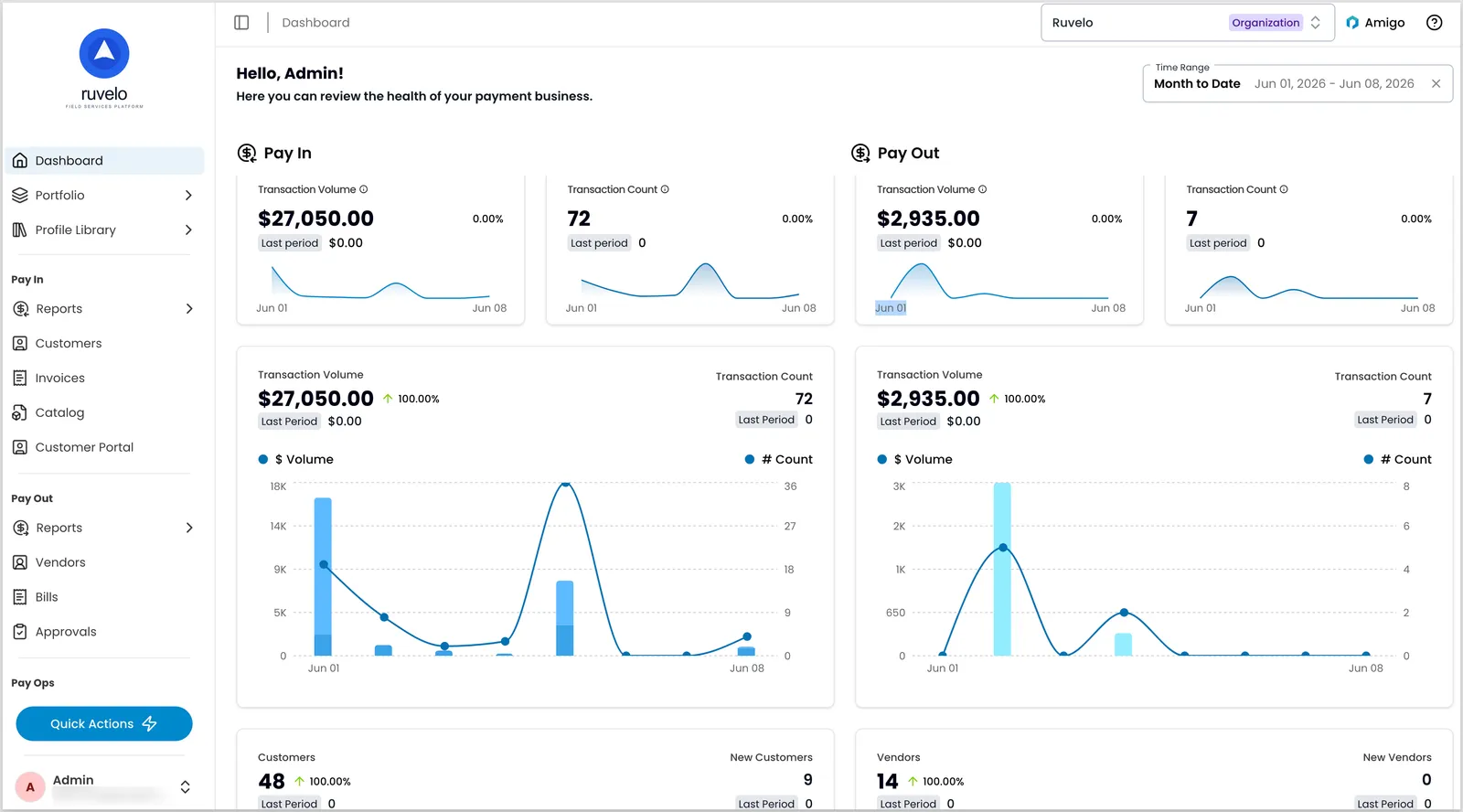
The Payabli Portal’s primary navigation is a sidebar that divides it into three categories: Pay In, Pay Out, and Pay Ops. Each category includes links to key reports and features within that section.
The sidebar is visible from every page. It highlights your current location as you navigate, and a breadcrumb in the top bar shows your current page. Use the ? icon in the top-right corner for help, feedback, and access to the docs.
The sections and features available to you depend on your user role, permissions, and your organization’s configuration. You may not see everything described here.
Sidebar navigation
The Dashboard is a summary of your organization’s Pay In and Pay Out activity, including trends over time.
The Portfolio gives you access to key reports and entities:
- Organizations — sub-organizations created to group and manage paypoints
- Paypoints — approved merchant locations where transactions occur
- Residuals — records of the share of revenue a partner receives from individual transactions
- Applications — boarding applications from merchants
- Boarding templates — templates for forms to receive applications from merchants
Within an organization, sub-organization, or paypoint, use the sidebar to navigate to reports and features. For more information, see Entity hierarchy and Boarding overview.
Pay In
Pay In covers all incoming payment activity. The Reports section gives you visibility into transactions, autopays, batches, and transfers, along with dispute management — card disputes, ACH returns, and reconciliation exceptions. You can also manage customer records, invoices, and the products and services catalog from this section.
Pay Out
Pay Out handles outbound payment operations. Vendor management and bill payment are central to this section. Reports cover transactions, autopays, batches, transfers, virtual and ghost cards, vendor links, and reconciliation exceptions.
Pay Ops
Pay Ops is the governance and configuration layer. Administrators and developers use this section most often.
The Developers section is the integration hub. It’s where you manage API credentials and tokens, configure webhooks, review notification logs, set up SFTP accounts and file exchange, configure digital wallets, and manage Pay Out components.
Settings covers organization-wide configuration: organization details, custom fields, user management, and roles and permissions. It also includes communication and reporting tools — notification settings, custom reports, the export queue, and the audit log — and appearance customization through themes.
Reports
Most of your data in Payabli is viewable as reports: filterable tables. Click any row to open the record. Individual records load as either a full page or a side tray, depending on the report type.
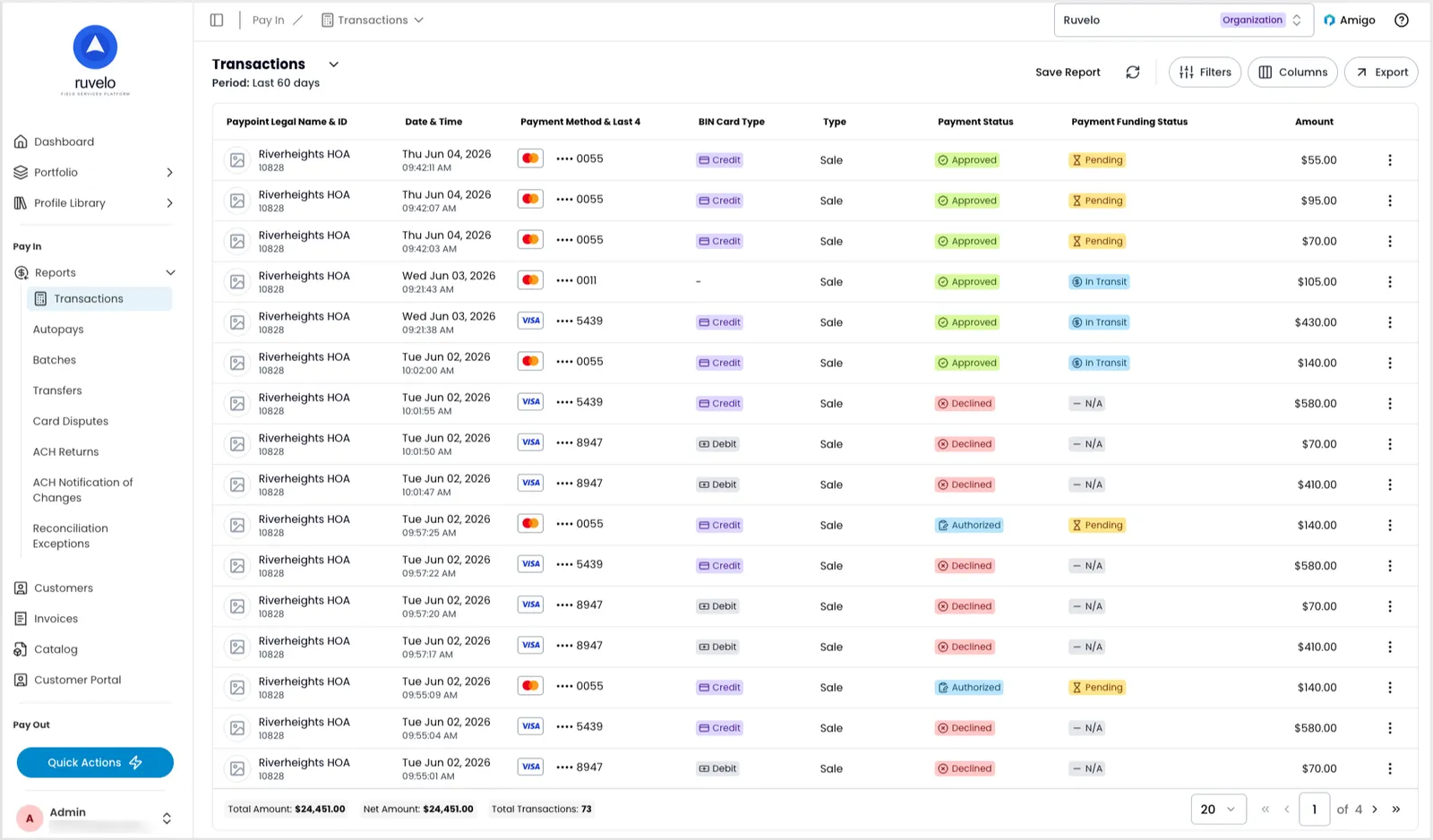
The platform supports deep linking. If a page loads a unique record, you can share the URL directly with teammates or the Payabli support team. You can tell if a page has a deep link by checking if the URL includes a record ID, as in {domain}.payabli.com/{organization}/{product-area}/{object}/{ID-number}.
Depending on your role and permissions, you can read, create, update, or delete records in reports. The platform also supports custom reports — you can save filter and column configurations and export data.
Switch between organizations and paypoints
The search in the top-right corner shows the current organization or paypoint you’re working in. Use it to switch to a different organization or paypoint.
The organizations, sub-organizations, and paypoints available to you depend on your user role and permissions.
Quick actions and user menu
The sidebar footer has two areas: the quick actions menu and your user menu.
The quick actions menu lets you perform common tasks from any page. You can also trigger quick actions with keyboard shortcuts (listed in the help menu). You can create and manage records across Pay In, Pay Out, and Pay Ops from here. Records created through quick actions don’t open automatically — navigate to them from the relevant report. Records created directly in a report open automatically.
The user menu shows your name and email. From there, you can access your user profile or log out.
Related resources
See these related resources to help you get the most out of Payabli.