

Manage vendor payment methods (Portal)
A vendor’s payment methods are how Payabli pays a vendor — ACH, virtual card, check, Real-Time Payments (RTP), or wire transfer. This guide explains how to view, add, set a default, and delete a vendor’s stored payment methods in the Payabli Portal. To add a vendor in the first place, see Create vendors.
View a vendor’s payment methods
On a vendor record, open the Payment Methods tab to see every payment method stored for that vendor, including its type and masked account details. A vendor can have more than one stored method. For example, when a vendor updates their own ACH details from a payment link (see Vendor self-service ACH updates), Payabli adds a new method instead of replacing the old one.
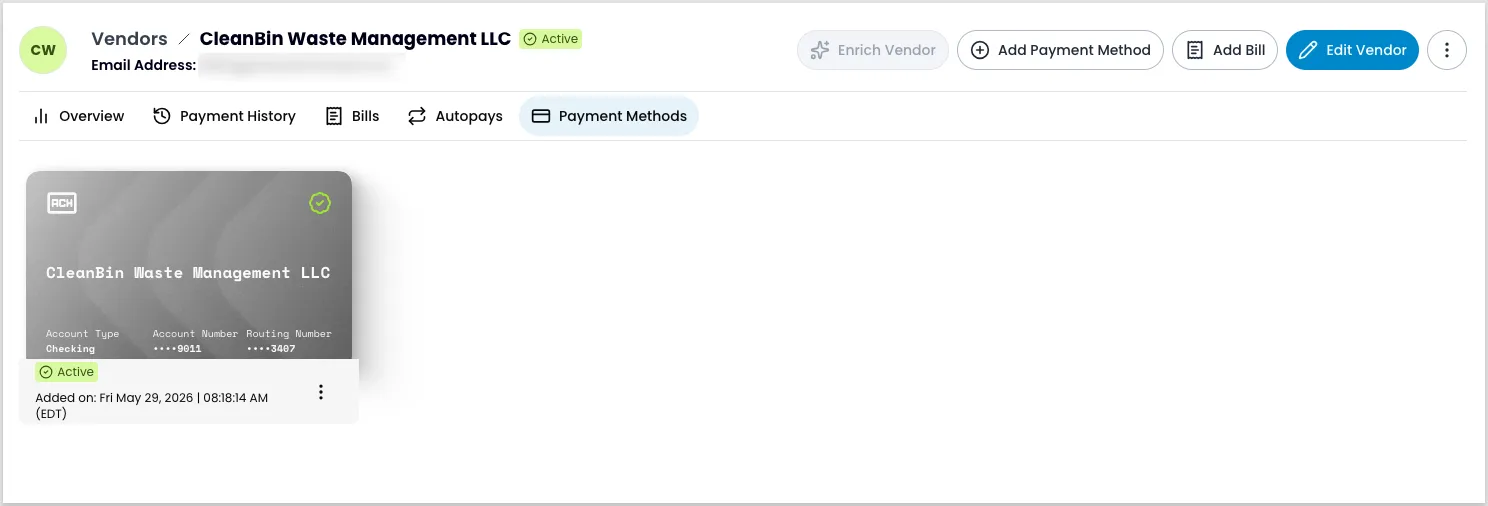
Add a payment method
To add a payment method, follow these steps:
- Navigate to Pay Out > Vendors.
- Locate the vendor record and click the three-dot icon.
- Select View Details from the menu.
- On the vendor record, click Add Payment Method.
- Select the payment method type, enter the details, and click Save.
Set a default payment method
When a vendor has a single stored payment method, Payabli sets it as the default automatically. Once a vendor has more than one stored method, changing the default requires action from you:
- Navigate to Pay Out > Vendors.
- Locate the vendor record and click the three-dot icon.
- Select View Details from the menu.
- Open the Payment Methods tab.
- Click the three-dot action icon next to the method you want, then select Set as Default.
Vendor self-service ACH updates
A vendor can update their own ACH details directly from a payment link, without you doing anything. Every time the payment link’s hosted page loads, the vendor’s default ACH method shows as locked.
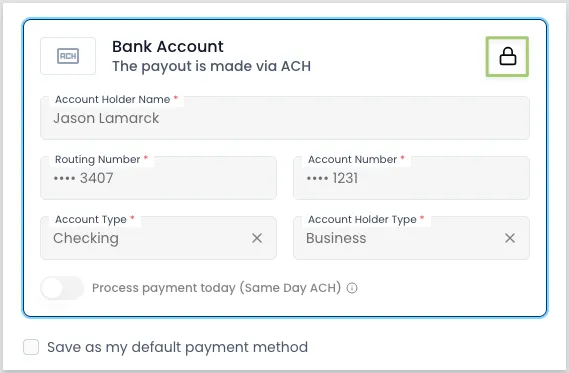
The vendor can click the lock icon at any time to start the update. Payabli emails the email associated with their vendor account a one-time code, and entering it unlocks the form so they can enter new ACH details. The code is valid for 2 minutes. Payabli stores these as an additional payment method on the vendor’s record rather than overwriting the existing one — see View a vendor’s payment methods.
Delete a payment method
Deleting a payment method is permanent and can’t be undone.
To delete a payment method, follow these steps:
- Navigate to Pay Out > Vendors.
- Locate the vendor record and click the three-dot icon.
- Select View Details from the menu.
- Open the Payment Methods tab.
- Click the three-dot action icon next to the method you want, then select Delete.
- In the confirmation modal that appears, confirm you want to permanently delete this payment method.
Related resources
See these related resources to help you get the most out of Payabli.
Prerequisites
- Manage vendors (Portal) - You manage payment methods from a vendor’s record, so start there
Next steps
- Manage bills (Portal) - With a payment method on file, you’re ready to pay the vendor’s bills