

Review notification logs (Portal)
Payabli records a log entry for every notification it sends, whether that’s a webhook delivery, an email, an SMS, or a generated report. Use the notification logs to confirm a notification reached its destination, find out why one didn’t, and send it again.
To add or change a webhook, see Manage webhooks (Portal). For how Payabli delivers and retries notifications, see Notifications overview.
Find a notification
Navigate to Pay Ops > Developers > Notification Logs. The log lists notifications newest first, and by default shows the delivery method, created date, event type and group, event ID, request ID, delivery status, and success date.
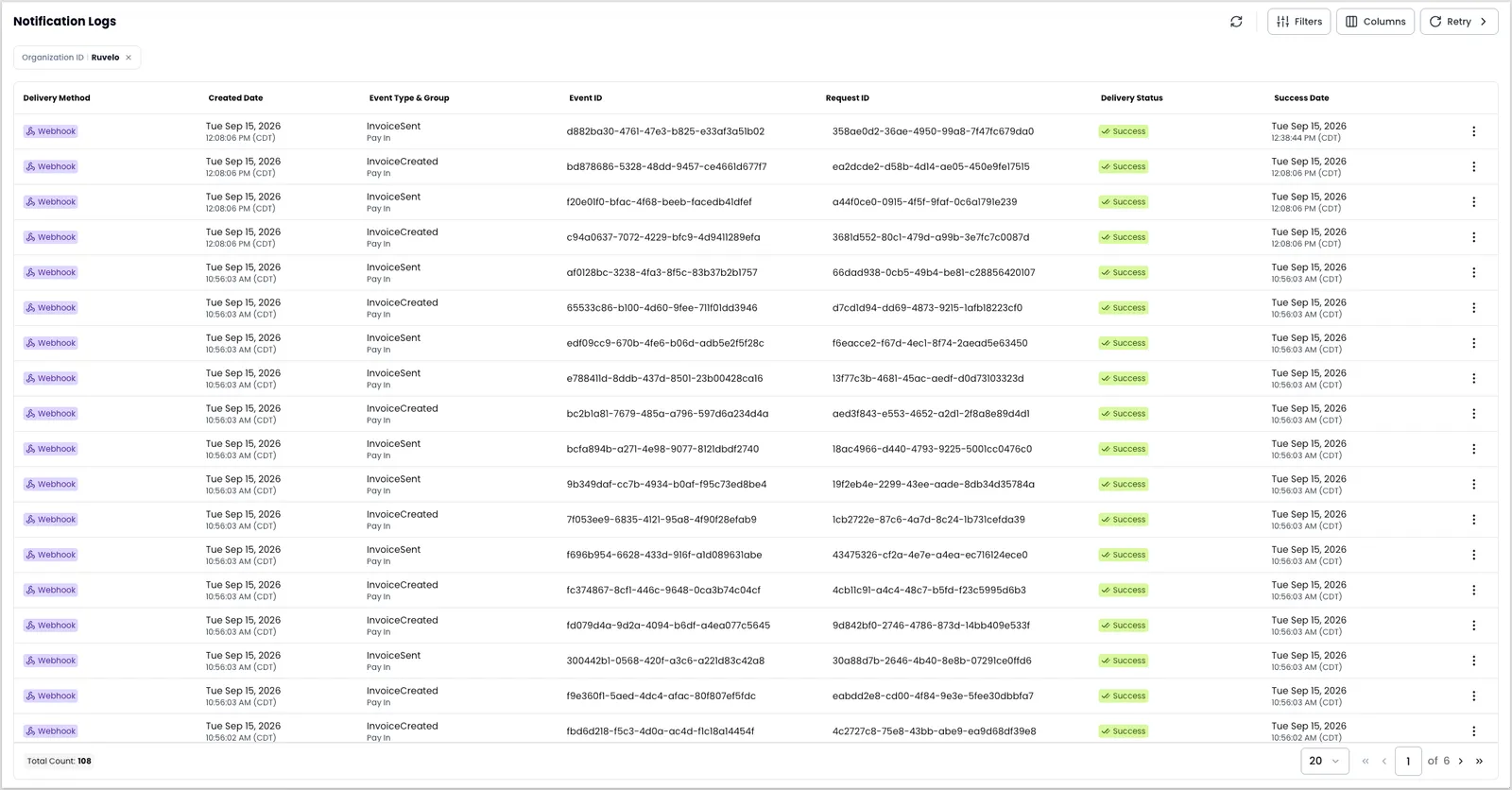
The toolbar holds Filters, Columns, and Retry, plus a refresh control. The footer shows the total record count and pages the list, 20 rows at a time by default.
Choose which columns to show
Click Columns to change which columns the list shows. The set mirrors the fields in the Event Details panel, so you can surface in the list whatever you’d otherwise open a row to read. That’s worth doing when you’re working through a batch of failures: add Target and HTTP Response Code, and you can triage the whole list without opening anything.
Available columns
- Delivery Method
- Created Date
- Event Type & Group
- Event ID
- Target
- Request ID
- Delivery Status
- HTTP Response Code
- Description
- Success Date
- Last Failed Date
- Organization Name & ID
- Paypoint DBA Name & ID
Description is the text shown under the webhook name on its details screen. Adding it tells you which webhook a delivery came from without opening the row.
Filter the log
Click Filters to narrow the list. Two groups, Log Details and Entity, cover when the notification was created and who it belongs to.
If the log looks empty, add a date filter to widen the range.
Log Details filters
- Created Date, to filter by calendar day
- Created Date Time, to narrow to a date and time
Entity filters
- Org
- Target
- Request ID
The rest of the filters describe the notification itself:
- Delivery Status: Failed or Success. Filter to Failed to find deliveries that didn’t arrive.
- Delivery Method: Email, Webhook, or SMS.
- Notification Type: Microdeposit, Vendor Link, Payment Receipt, Virtual Card - MFA, or Virtual Card - Link. Select more than one at a time.
- Event Type: search for an event, or expand a category and select events individually.
The Delivery Method and Notification Type lists show what the organization has configured, so another organization may offer different options.
Filter by Target to check one endpoint across every event it receives, which is the fastest way to tell a broken endpoint apart from a problem with one event type.
Read a notification’s details
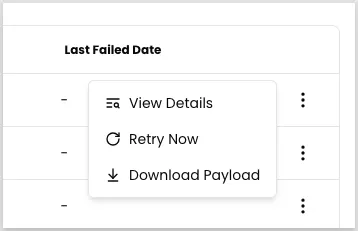
Click the three-dot icon on a row, then click View Details.
The Event Details panel opens with everything Payabli recorded about the delivery.
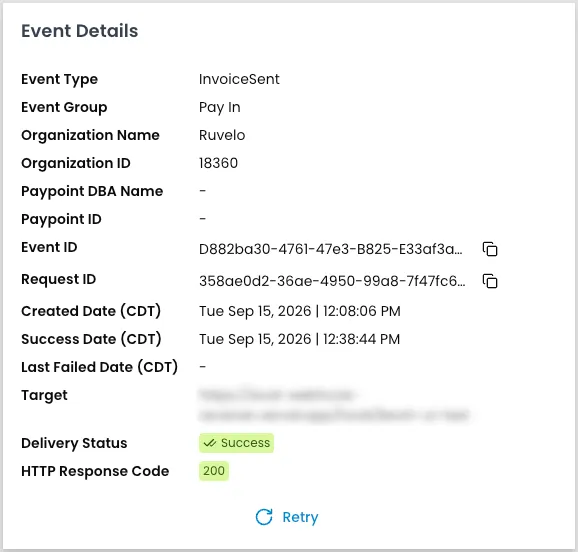
Read Created Date, Success Date, and Last Failed Date together to see what happened. A Last Failed Date with no Success Date means the delivery failed and hasn’t succeeded since. That isn’t a signal to step in on its own, because automatic retries may still be running. Webhook retries finish within about 10 minutes of the Created Date, so an entry older than that with no Success Date is waiting on you.
Tell a rejected delivery from an unreachable one
The HTTP Response Code separates the two failures that look alike in the list:
- A status code, such as
401or500. Your endpoint received the request and rejected it. Check the payload’sresponseContentfor what your server said, then fix the endpoint before retrying. N/A. Payabli received no response at all and the payload’sresponseStatusreadsNo response received from server.The endpoint timed out, refused the connection, or isn’t reachable from the internet. Confirm the URL is right and publicly reachable before retrying.
Inspect the payload
The Payload section shows the full JSON Payabli sent, along with the delivery’s own metadata. Use the copy icon to put it on the clipboard or the download icon to save it. To save it without opening the record, click Download Payload on the row’s three-dot menu.
Alongside the event data in jobData, the payload records webHeaders (the custom headers Payabli sent), responseHeaders (headers the target returned), responseContent (the body the target returned), target, responseStatusCode, responseStatus, and success. Together these tell you exactly what left Payabli and what came back.
That comparison matters most when a delivery shows Success but nothing happened on your side. A Success status means your endpoint accepted the request, not that your system acted on the event. If what your endpoint returned isn’t the usual acknowledgment it sends, the request arrived without reaching the code that handles it.
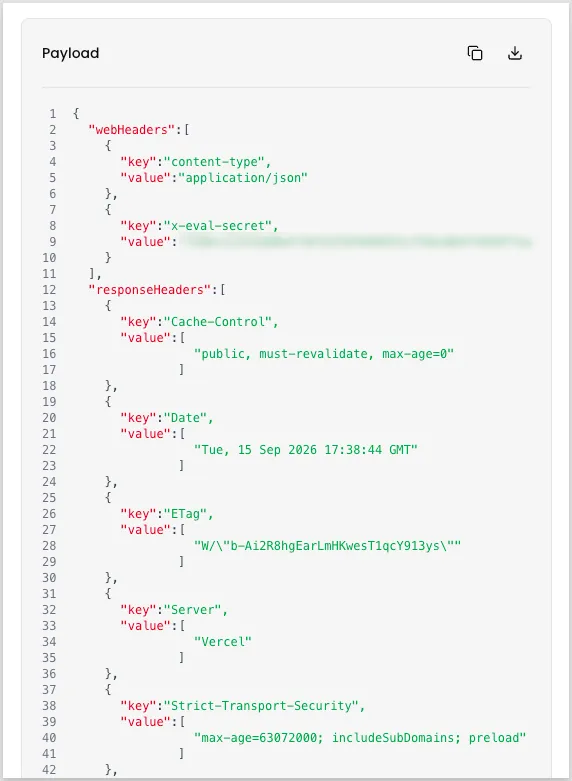
The payload includes any custom headers configured on the webhook, with their values in plain text. Redact them before sharing a payload in a ticket or a screenshot.
Retry a failed notification
Payabli retries a failed webhook twice on its own, waiting 5 minutes between tries. After the second failed retry, it marks the delivery failed and leaves it for you to retry by hand.
Fix whatever caused the failure before you retry, since a retry to an endpoint that’s still broken fails the same way.
Retry doesn’t apply to everything. Bulk retries exclude emails, and Payabli can’t retry some email notifications at all, such as password resets. Retry also stays available on deliveries that already succeeded, so check Delivery Status before you use it when you’re working through a list.
Retry one notification
Click Retry Now on the three-dot menu of a row, or the Retry link in its Event Details panel.
Retry several notifications
Click Retry in the toolbar to open its menu. It offers two ways to retry in bulk.
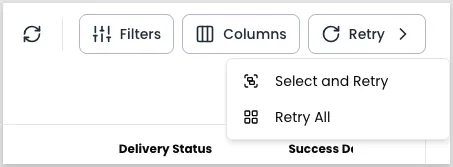
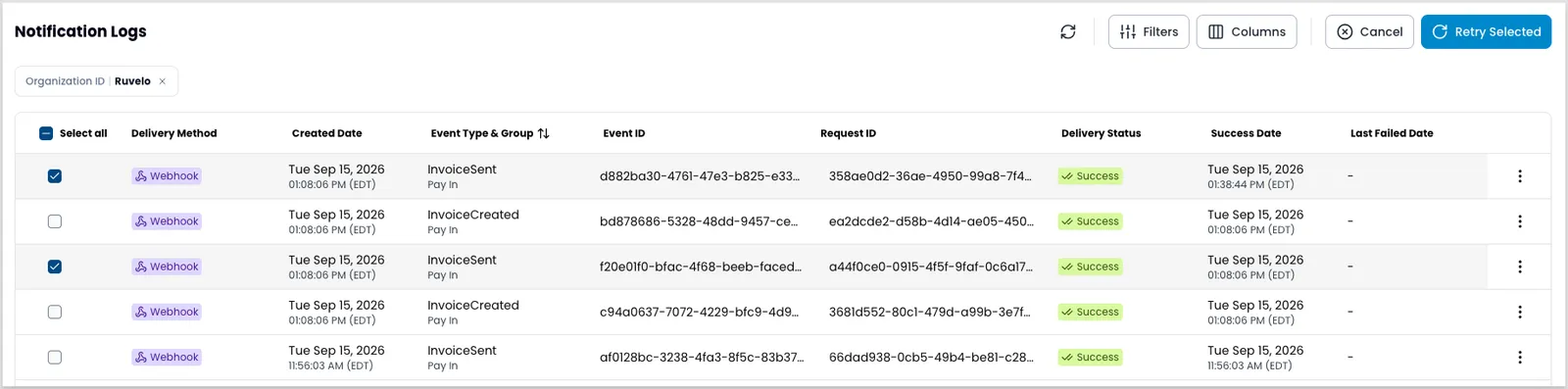
Select and Retry lets you pick the rows. A checkbox column appears with a Select all option, and the toolbar switches to Cancel and Retry Selected. Select the rows you want, then click Retry Selected. It stays disabled until you select at least one row, and Cancel leaves without retrying anything.
Retry All skips the selecting and asks you to confirm first.
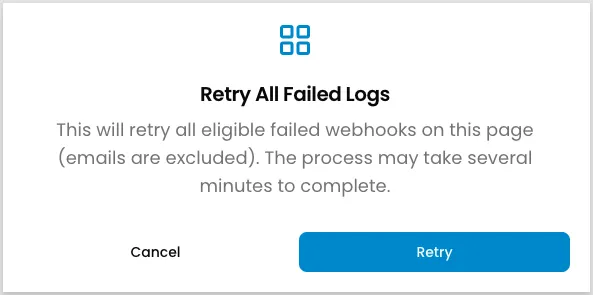
Retry All covers the current page of results, not everything matching your filters. With the default page size of 20, a backlog spread across several pages needs a pass on each one. It also excludes emails, so it retries only failed webhooks.
Check whether a retry worked
However you retry, a confirmation appears in the bottom right and names how many notifications Payabli is retrying.
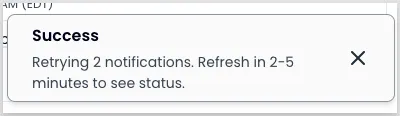
That message confirms Payabli accepted the retry, not that the delivery landed. Refresh the list after 2 to 5 minutes, then check whether Success Date fills in.
Related resources
See these related resources to help you get the most out of Payabli.
References
- Search notification logs - Query the same log data through the API