Customize the Portal dashboard
Customize the Payabli Portal dashboard so your most important metrics are the first thing you see after signing in.
The dashboard is the page that loads when you enter the Payabli Portal, at both the organization and paypoint level. It’s built from blocks: summary cards and charts for Pay In and Pay Out activity, such as transaction volume, transaction count, and customer or vendor totals. Payabli provides a fixed set of blocks, and you control which ones appear and how they’re arranged.
Set the dashboard time range
Every block reports on the same period. Use the Time Range menu to change it. Every total, last-period comparison, and chart on the page updates to match.
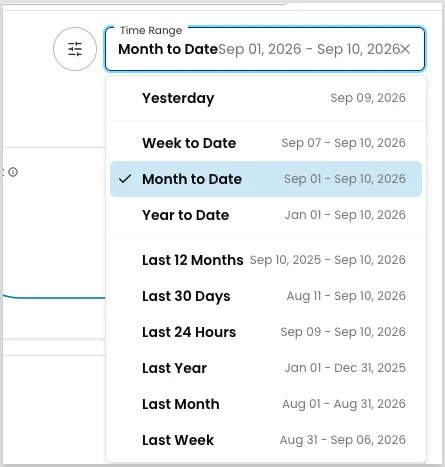
The menu offers a fixed set of presets and doesn’t take a custom date range. Your selection isn’t part of your saved layout either, so it returns to the default when you sign in again. To work with a date range of your own, use a report’s date filter instead. See Filter a report for how those filters work. Unlike the dashboard’s rolling presets, a report’s date filter applies a fixed range.
Rearrange, resize, or hide blocks
Reorder the dashboard so your most-used metrics come first, widen the blocks that need more room, and hide the ones you don’t track. You can also change how much width the Pay In and Pay Out sections each get.
Enter editing mode
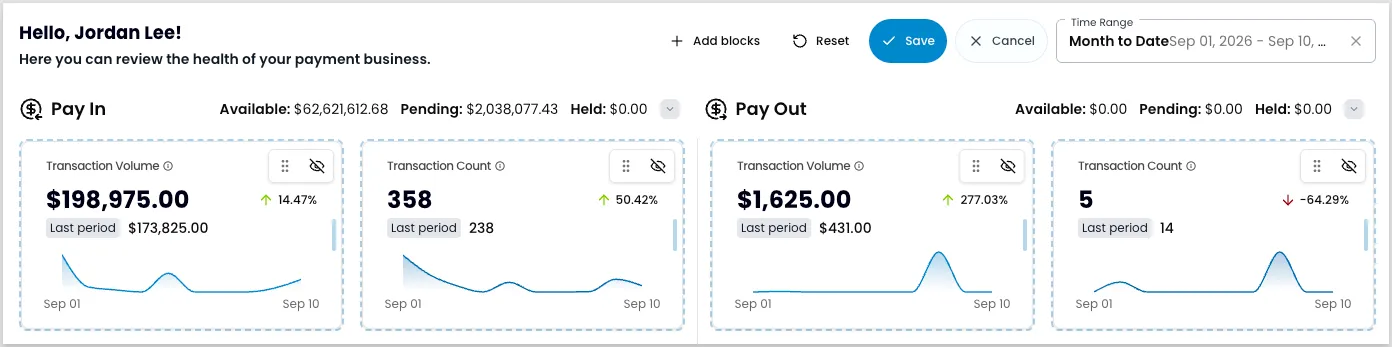
Click the sliders icon next to the Time Range menu. Every block gains a handle, a hide icon, and a resize bar, and a toolbar appears across the top.
Adjust the layout
Do any of these, in any order:
- Drag a block by its handle to move it.
- Drag the bar on a block’s right edge to make the block wider or narrower. Block widths snap to set divisions within the Pay In or Pay Out section.
- Drag the divider between the Pay In and Pay Out sections to change how the width splits between them. Unlike block widths, this divider doesn’t snap.
- Click the hide icon on any block you want to remove.
You can resize the Pay In and Pay Out sections and hide every block inside one, but you can’t remove the section itself.
Payabli saves your layout to your user account, so customizing the dashboard doesn’t change what anyone else on your team sees.
Two controls discard your edits, and they differ in how far they go. Cancel drops the changes you made since entering editing mode and returns the dashboard to your last saved layout. Reset goes further, replacing your saved layout with Payabli’s default. Unlike Cancel, Reset doesn’t take effect until you click Save.
Restore a hidden block
Hidden blocks aren’t gone. Payabli keeps them in a list you can restore from in editing mode.
- Click the sliders icon next to the Time Range menu to enter editing mode.
- Click Add blocks. The number in parentheses is how many hidden blocks you have to choose from.
- Select the block you want back. It returns at the end of its Pay In or Pay Out section, so drag it to where you want it.
- Click Save.
Go beyond the dashboard
The dashboard covers a fixed set of metrics. When you need a chart, table, or aggregate the blocks don’t offer, ask Amigo™ instead: Amigo Insights builds visualizations and answers questions about your data on demand. See Use Amigo Insights for reports and analytics. Amigo needs organization-level enablement, plus organization-scoped access and the amigo_read permission on your role. It isn’t an option for users working within a single paypoint.
For saved, filterable views of your transaction and entity data, see Manage custom reports. For a comparison of Payabli’s reporting and analytics options, see Reporting and analytics overview.
Related resources
See these related resources to help you get the most out of Payabli.