

Activate an AXIUM device (Portal)
Set up a new Ingenico AXIUM device so it can take card-present payments at your paypoint. A new device can’t take payments until it’s registered, so a device that’s lost or stolen in transit can’t be used. You power on the device, connect it to Wi-Fi, and register it to your paypoint with an activation code you generate in the Payabli Portal. You do this only once per device. To activate devices with the API instead, see the AXIUM devices API quickstart.
To activate a test device, follow the same steps in the sandbox environment.
What’s in the box
Your AXIUM device ships with:
- 1 Ingenico AXIUM device
- 1 USB-A to USB-C charging cable with a 2-pin power adapter
- 1 paper roll, if your device has a built-in printer
- 1 printed user guide from Ingenico
Before you begin
Have these ready before you start:
- Wi-Fi details: your network name and password.
- The device’s admin password, which Payabli provides. Every device at your location uses the same password.
- The Admin role in the Payabli Portal for the paypoint you’re registering the device to. You need it to generate an activation code.
- Network access: if your network restricts outbound traffic, ask your IT team to allow the domains in Network allowlist.
Network allowlist
The device connects to Ingenico for firmware and configuration updates, and to Payabli to register and take payments. Use the testing domains for a test device in the sandbox environment.
Activate the device
Activating an AXIUM device registers it to a paypoint so it can accept payments.
Set up the device
Power on the device and connect it to a Wi-Fi network. The device might ask for its admin password. Then open the Payabli app. On the Register Device screen, it prompts for a device name, then a 6-digit verification code, which is the activation code you generate in the next step.
Pick a name that helps your team tell devices apart, such as Front Desk, South Lobby, or Floor 9 Lane 2. The name identifies the device in the Payabli Portal, including when you choose a device to take a payment. To change it later, see Manage devices (Portal).
The device ships with a printed user guide for the hardware setup. If you need another copy, download the guide for your model from Ingenico user guides.
Generate an activation code
In the Payabli Portal, navigate to Pay In > Devices for the paypoint. Click the three-dot icon in the top-right corner and select Generate activation code. At the organization level, the path is Pay In > Devices > All Devices, and you also select the paypoint to register the device to.
You don’t need Add Device for an AXIUM device. The device registers itself to the paypoint when you enter the activation code. If you try to add an AXIUM device with Add Device, the Portal shows Device was not successfully created. Add Device is for devices you register by serial number, such as the PAX A920.
The code appears right away, with a countdown to when it expires. Check that the entry shown matches the paypoint you’re registering the device to.
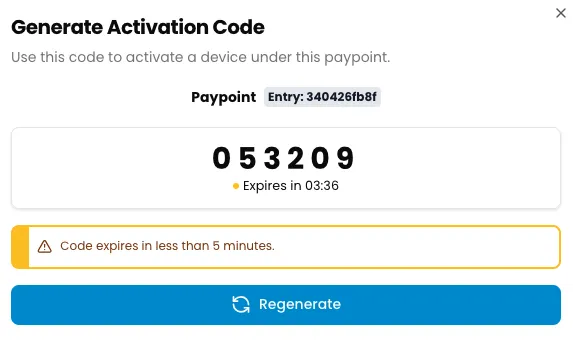
The code works one time only and expires 5 minutes after it’s issued, so generate it when the app reaches the verification code screen. If it expires, click Regenerate to get a new code. If you’re setting up more than one device, generate a separate code for each device when it reaches that screen.
Take a payment
Your device is ready to accept card-present payments. After activation, an AXIUM device runs in semi-integrated mode. You start each transaction from your point-of-sale (POS) system or the Payabli Portal, and Payabli sends it to the device to collect the card.
To take a payment from the Payabli Portal, see Make a card-present payment.
The device installs software and firmware updates between 2:00 and 4:00 AM local time, so updates don’t interrupt daytime payments. Leave it powered on and connected to Wi-Fi overnight so it receives them.
Related resources
See these related resources to help you get the most out of Payabli.
Often confused with
AXIUM devices API quickstart - Activates an AXIUM device with an activation code from the API, not the Payabli Portal. See AXIUM devices API quickstart