

Manage autopays
From the Pay Out Autopays report, or a vendor’s own Autopays tab, you can monitor, update, and cancel scheduled payout autopays. Autopays are available for on-demand payables only — see Understand Pay Out autopays for how they interact with managed payables. To set up a new autopay, see Create an autopay.
Pay Out autopays are called payout subscriptions in the API. If you’re looking for API-based subscription management, see Manage payout subscriptions with the API.
Monitor autopays
To view your payout autopays, navigate to Pay Out > Reports > Autopays. This opens the Autopays report, where you can see all payout autopays and apply filters to narrow the view.
At the organization level, you can’t create an autopay from this report — start from the vendor record instead. At the paypoint level, you can also create one from here by clicking Create Autopay at the top of the screen. See Create an autopay.
The report lists every autopay with its schedule, vendor, payment method, and amount.
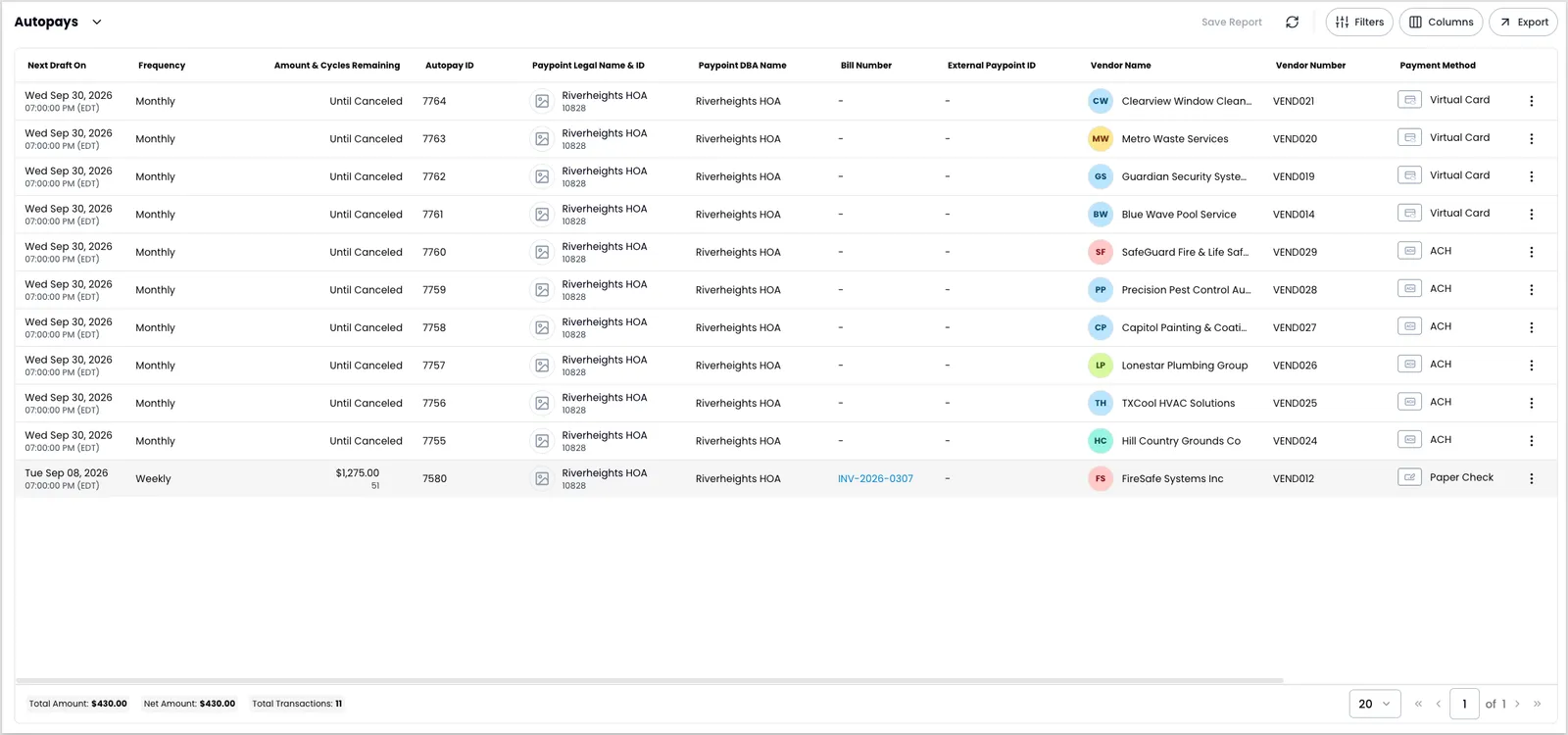
You can also see a vendor’s autopays from their own record: open the vendor and select the Autopays tab. The same actions are available from both surfaces.
To open an autopay’s details, click the three-dot icon on the autopay record and select View Details.
You can’t edit an autopay from the details panel. To edit, close the panel and select Edit Autopay from the three-dot icon.
Update an autopay
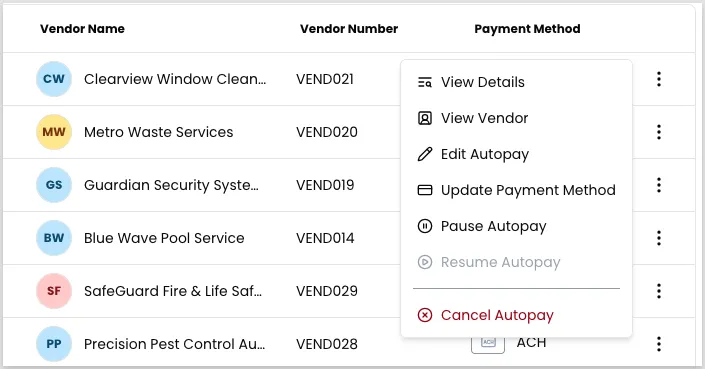
The three-dot icon on an autopay record exposes View Details, View Vendor, Edit Autopay, Update Payment Method, Pause Autopay, Resume Autopay, and Cancel Autopay.
Edit an autopay
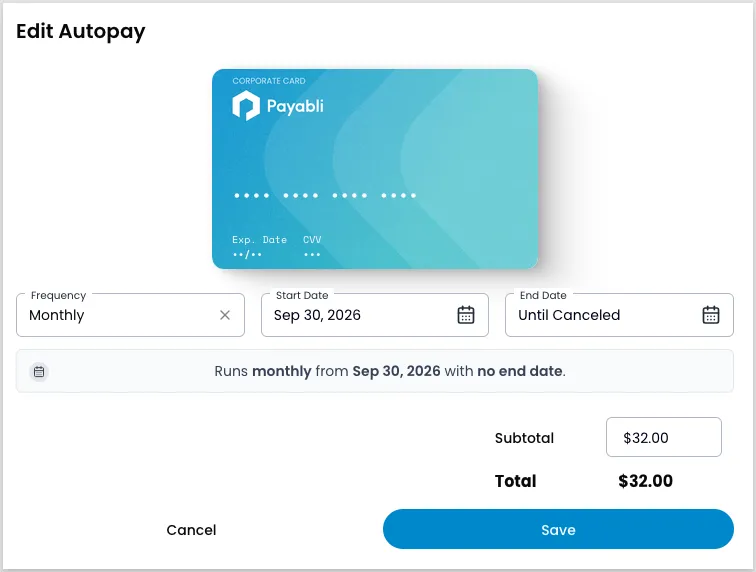
Select Edit Autopay to open the edit modal. Update the frequency, start date, or end date. The new start date must be tomorrow or later. For the end date, pick a date in the calendar or click Until Canceled to keep the autopay running until you cancel it.
How you change the amount depends on whether the autopay has line items:
- Without line items: edit the Subtotal directly.
- With line items: under Item Details, change an item’s unit price or quantity, or remove an item.
Either way, Payabli recalculates the total automatically.
Update the payment method
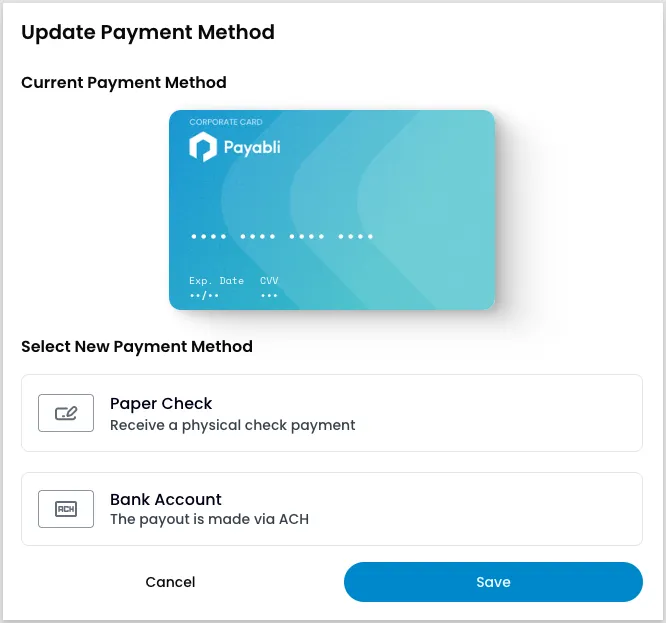
Use Update Payment Method to change the payment method on an autopay — it’s a separate action from the edit modal, matching the Pay In pattern. Select a new method from the options shown, then click Save.
Pause an autopay
To pause an autopay:
- Locate the autopay record (from the report or the vendor’s Autopays tab) and click the three-dot icon.
- Select Pause Autopay.
- Confirm in the modal that appears.
Resume an autopay
To resume a paused autopay:
- Locate the autopay record and click the three-dot icon.
- Select Resume Autopay.
- Confirm in the modal that appears.
Cancel an autopay
Canceling an autopay is permanent and can’t be undone. Only users with an admin role can cancel an autopay.
To cancel an autopay:
- Locate the autopay record and click the three-dot icon.
- Select Cancel Autopay.
- Confirm in the modal that appears.
Related resources
See these related resources to help you get the most out of Payabli.
References
- Understand Pay Out autopays - Understand how Pay Out autopays automate recurring vendor payouts and connect to bills