

Create an autopay
Autopays are recurring payouts that pay a vendor at a scheduled interval. Set an amount (or catalog item), a schedule, and a payment method once, and Payabli pays the vendor automatically at each occurrence. Pay Out autopays are schedule-driven only, and available for on-demand payables only. See Understand Pay Out autopays for how they compare to Pay In autopays and interact with managed payables.
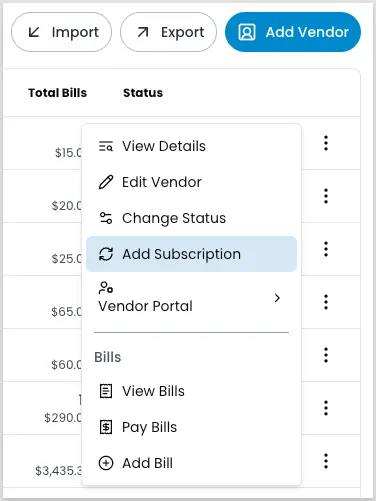
The vendor’s action menu calls this action Add Subscription, which opens the Add Autopay side panel. Payabli refers to the same feature as an autopay elsewhere in the portal, and as a payout subscription in the API. Every portal role except Viewer can create autopays.
Create an autopay
To create an autopay, start from the vendor record.
At the organization level, you can’t create an autopay from the Pay Out Autopays report — start from the vendor record instead. At the paypoint level, you can also create one from the report by clicking Create Autopay at the top of the screen.
Open the vendor record
Navigate to Pay Out > Vendors, locate the vendor, and click the three-dot icon. Select Add Subscription to open the Add Autopay side panel. Because you’re starting from the vendor’s record, the vendor field is already filled in.
Enter the amount or select an item
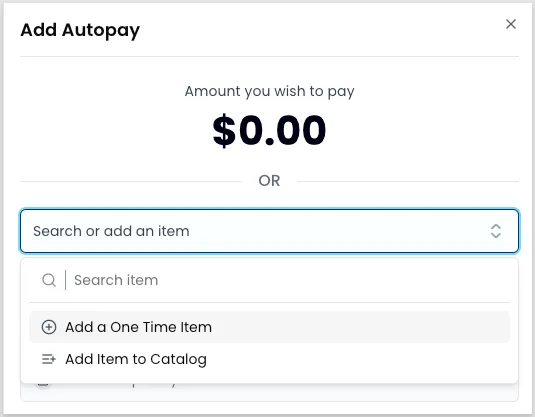
Enter the Amount You Wish to Pay, or search for a line item in your catalog instead. If Payabli can’t find the item, select Add a One-Time Item to add it just for this autopay. If you would like to add it to the catalog for future use, select Add Item to Catalog. Whether you add the item as a one-time item or a catalog item, this locks the Amount You Wish to Pay field.
Set the schedule
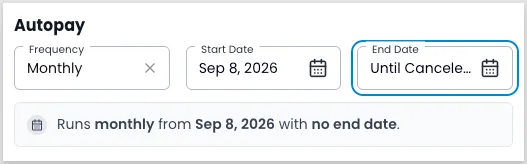
Select a frequency and a start date. For the end date, pick a date in the calendar, or click Until Canceled in the calendar to keep the autopay running until you cancel it. The schedule summary reads “no end date” even while the End Date field is empty. Even so, Select How Vendor Gets Paid stays inactive until you pick a date or click Until Canceled. Pay Out autopays don’t support a balance-driven option — every occurrence pays the same configured amount.
Enter bill details
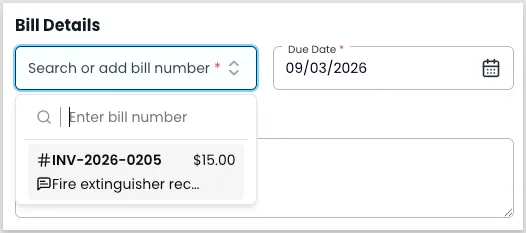
Search for an existing bill by number, or enter a new one — the bill number is mandatory.
Selecting an existing bill locks in its amount as the Amount You Wish to Pay, overriding whatever you entered in the amount step. If you enter a new bill number, the amount stays editable.
Enter a due date — this is mandatory and independent of the autopay’s frequency. Add any notes you want attached to each payment record in this autopay series.
Choose a delivery method
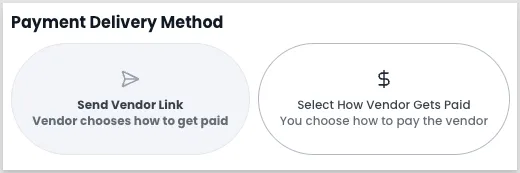
Two buttons offer different ways to pay the vendor: Send Vendor Link and Select How Vendor Gets Paid. Send Vendor Link isn’t available for autopays — sending a new link at every recurring occurrence would generate too many vendor links. Click Select How Vendor Gets Paid instead.
Select a payment method
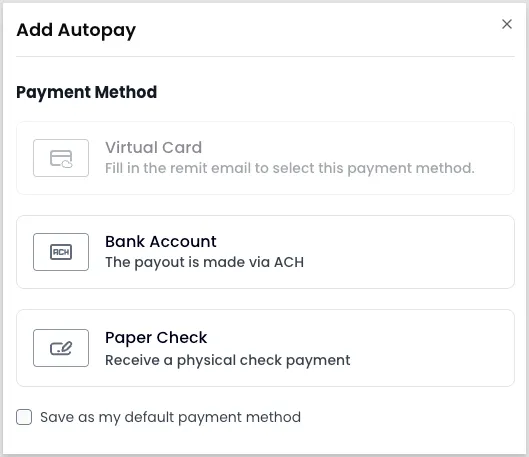
Click Select How Vendor Gets Paid, then choose how to pay the vendor: Virtual Card, Bank Account (paid via ACH), or Paper Check. Virtual Card requires a remit email on file for the vendor — it’s disabled until one is added. The panel also shows Save as my default payment method, but it doesn’t apply to autopays.
Related resources
See these related resources to help you get the most out of Payabli.
Prerequisites
- Manage vendors (Portal) - You create an autopay from a vendor’s record, not from the Autopays report.
References
- Understand Pay Out autopays - Understand how Pay Out autopays automate recurring vendor payouts and connect to bills