

Manage Pay Out transfers (Portal)
A Pay Out transfer is the money movement that funds a batch of vendor payouts. It runs in the opposite direction from a Pay In transfer. A Pay In transfer deposits money into a paypoint’s bank account. A Pay Out transfer collects money from the funding entity, typically the paypoint, so Payabli can pay the vendors in the batch. To learn how a batch groups payouts before its daily cutoff, see Pay Out batches overview.
Not every Pay Out transfer funds a batch. Payabli collects Vendor Enrichment usage through a separate daily ACH debit, which appears as a billing transfer with no batch number. Each transfer carries a type of debit, credit, or billing, and a method of ACH, virtual card, or check.
Funding and payout timing
A transfer reaches Funded (settled) when its funding debit clears: either the bank confirms the debit, or the return window passes without a return. A batch is Funded after its funding clears. Neither status means vendors have been paid. Payabli sends the payouts after the batch is funded, and the batch reaches Paid when every payout in it has a status of Paid. To learn more about how a batch moves through its statuses, see Batch statuses.
Find a transfer
Use the Transfers report to confirm a batch was funded, see how Payabli calculated a transfer’s amount, and trace a funding question to its payouts. Any role can open the report. Navigate to Pay Out > Reports > Transfers. Use columns, filters, and saved views to control what the report shows and to locate the transfer you need.
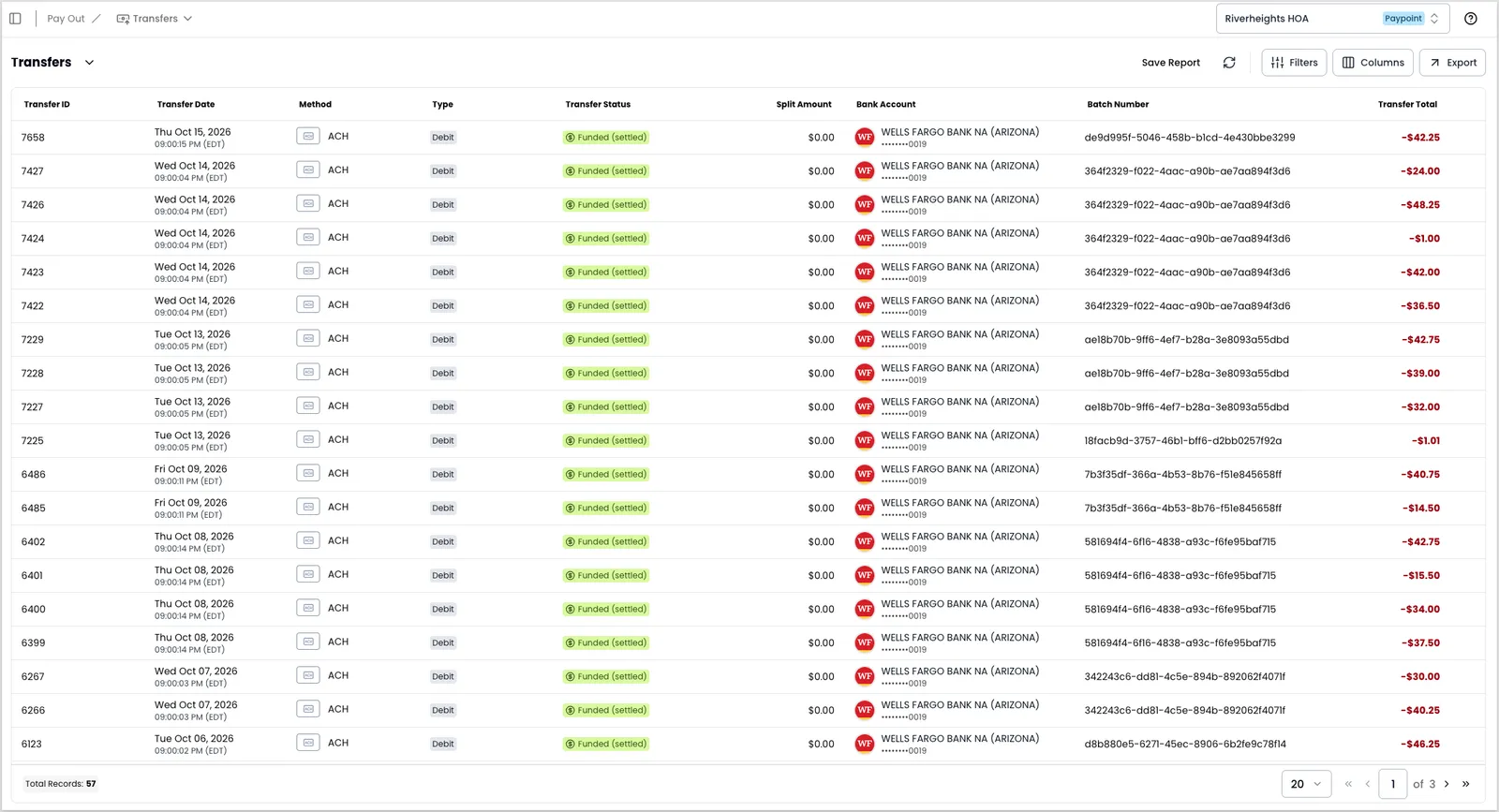
Customize the report view
Add columns when you need details beyond the default view. Click Columns, select the columns you want, and click Save.
Available columns
- Organization Name & ID
- Paypoint Legal Name & ID
- Paypoint DBA Name
- External Paypoint ID
- Transfer ID
- Transfer Date
- Method
- Type
- Transfer Status
- Number of Payments
- Gross Amount
- Chargebacks
- ACH Returns
- Billing & fees
- Adjustments
- Third Party Paid
- Split Amount
- Bank Account
- Batch Number
- Statement Description
- Connector
- Batch Currency
- Transfer Total
Method and Type are worth adding to the default view. Method tells you how the money moved for that transfer, and Type tells you which direction it moved. Neither appears on the Pay In Transfers report, so a view you built there doesn’t carry them over.
Filter transfers
To filter rows, click Filters. Apply your filters, then click Search. Filters fall into three categories: Transfer Details, Payment Method, and Batch Details.
- For fields that accept multiple selections, the filter uses OR logic: selecting two transfer statuses returns transfers matching either one.
- For string fields, unquoted text matches partially. For example, filtering the paypoint with
Riverheightsmatches any paypoint whose DBA name contains that string. Wrap a value in quotes for an exact match:"Riverheights HOA"returns only that paypoint.
Date filters on this report apply a fixed range. For example, if you save a report with a date filter for July 1 to July 3, 2026, reopening it later still shows that same fixed range. It doesn’t shift to “the last 3 days.”
Transfer Details filters
- Transfer ID
- Transfer Date
- Transfer Status: ACH Return or Chargeback, Exception, Funded (settled), Held, In Transit, None, Pending, Released, Resolved, Transferred
- Bank Account: Bank Account Number, Bank Routing Number
- Transfer Amount
- Gross Amount
- Chargeback Amount
- ACH Return Amount
- Billing and Fees
- Adjustments
- Third Party Paid
- Split Amount
Payment Method filters
- ACH
- Paper Check
- Virtual Card
- Managed
- RTP
- Wire Transfer
Batch Details filters
- Batch Number
- Organization Name
- Organization ID
- Paypoint DBA Name
- Paypoint Legal Name
- External Paypoint ID
- Batch Currency: USD, CAD
- Connector: BK, RP, CP, LB
The Transfer Status list differs from the one on the Pay In Transfers report. Pay Out combines returns and chargebacks into a single ACH Return or Chargeback status, and has no Pending by Balance status.
The Payment Method filter also lists Push to Card, which isn’t a Pay Out method. Filtering on it returns no transfers.
View transfer details
Click a transfer’s row to see how Payabli arrived at its amount. There’s no three-dot menu on the row, so clicking anywhere on it opens the details panel. The panel shows a row of roll-up buttons, each displaying the dollar amount in that category. Click a button to filter the transaction table to just that category.
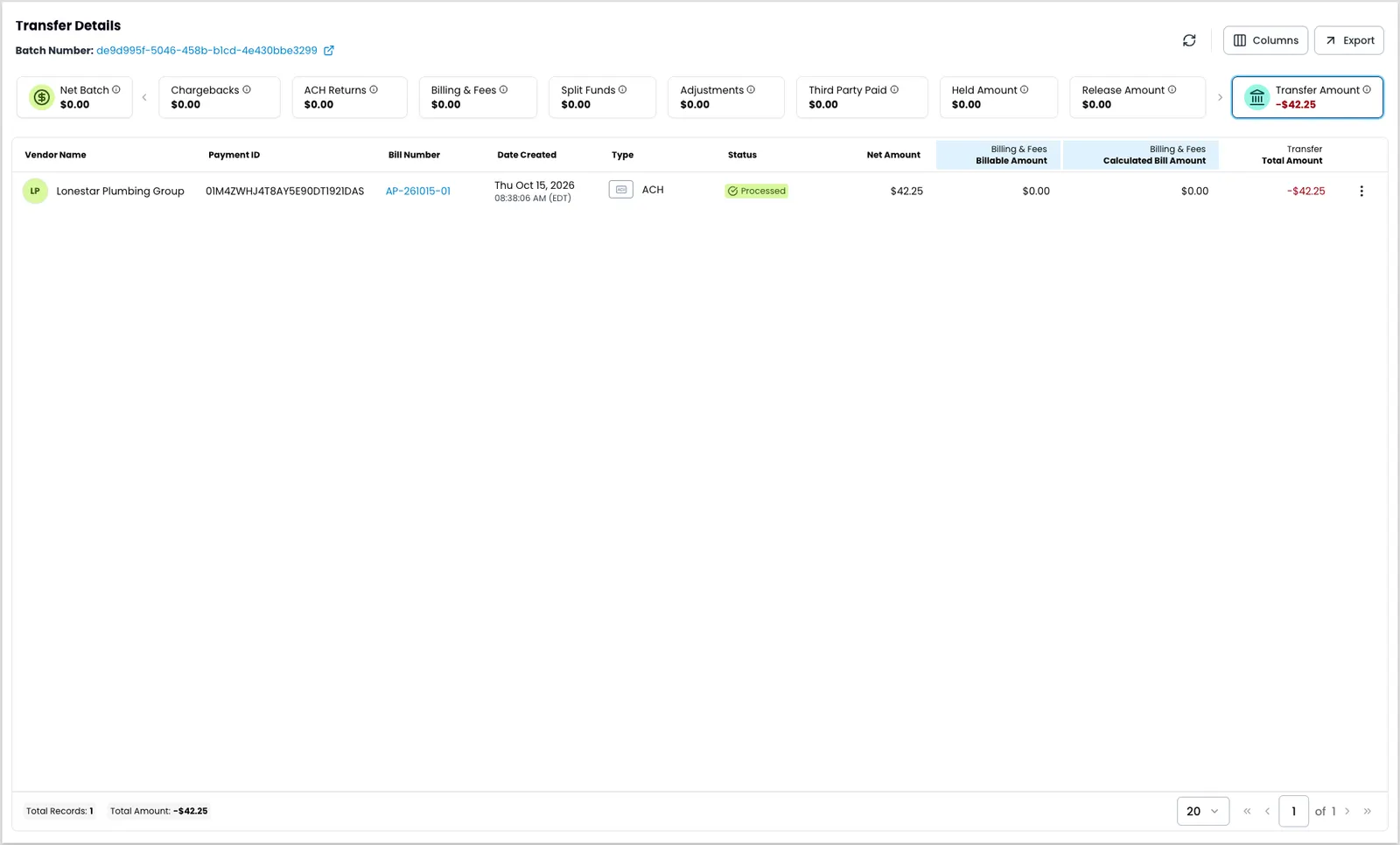
Held Amount and Release Amount appear here even though neither is available as a column on the report list. In the Portal, the details panel is the only place to see them.
Chargebacks here come from card network disputes against virtual card payouts, not from vendors sending money back. Pay Out transactions don’t support refunds, which is why the details panel has no Refunds roll-up.
The transaction table has its own Columns picker, separate from the one on the report list. It groups columns into payout details, billing and fees, and transfer.
Payout columns
- Vendor Name
- Payment ID
- ACH Trace Number
- Lot Number
- Vendor ID
- Account Number
- Vendor Number
- Tax ID
- Email Address
- Phone Number
- Billing Address
- Remit Email Address
- Remit Address
- Bill Number
- Date Created
- Type
- Payout Program
- Status
- Last Event
- Check Number
- Net Amount
- Fee
- Total Amount
Billing and fees columns
- Billable Event
- Billable Amount
- % Per-Item
- $ Per-Item
- Frequency
- Calculated Bill Amount
Transfer columns
- Total Amount
Billable Event is hidden by default. To trace a fee back to its cause, add it from the Columns picker. On billing rows, it shows the transaction that caused the charge.
Total Amount appears in both the payout group and the transfer group. The payout one is the amount of that individual payout. The transfer one is the amount of the transfer the payout belongs to, so it repeats down the table.
Use ACH Trace Number and Check Number when a vendor asks you to prove a payment was sent. Both identify the payment to the receiving bank.
To act on a transaction, click the three-dot icon in its row, then select an action:
- View Details opens the payout’s detail view as an overlay.
- View Vendor opens the vendor’s detail view.
To export the transactions in view, click Export, select the columns you want to include, then select CSV or XLSX. The export reflects whichever roll-up you’ve filtered to, not the full transaction list.
Differences from the Pay In Transfers report
If you work across both areas, expect the Pay Out Transfers report to differ in these ways:
- No actions on a transfer. Pay In offers Retry Transfer, Resolve Transfer, and Process Transfer on a transfer’s three-dot menu. Pay Out transfers have none. To act on money that’s stuck, work from the Pay Out transactions list instead. Transactions inside a transfer do have actions.
- View Vendor instead of View Customer. Transactions inside a Pay In transfer offer View Details, View Customer, and Send Receipt. Pay Out offers View Details and View Vendor only.
- No transfer notes or history. Pay In keeps an audit log and an event timeline on each transfer. Pay Out exposes neither from this report.
- Open details by clicking the row, rather than through a menu.
- Method and Type columns exist here and have no Pay In counterpart.
- Combined return status. Pay Out uses a single ACH Return or Chargeback status, and has no Pending by Balance.
- No Card Rejects roll-up in the details panel.
Related resources
See these related resources to help you get the most out of Payabli.
Prerequisites
- Manage Pay Out batches and funding (Portal) - A transfer funds a batch, so understand batches before reading transfers
References
- Pay Out statuses - Learn about Pay Out statuses
- Get list of outbound transfers for a paypoint - Query or export Pay Out transfers through the API, using
exportFormatfor a CSV or XLSX file - Get outbound transfer details - Query or export the transactions and roll-ups in a single Pay Out transfer